







































Microsoft Keyboard Short Keys Explained: The Productivity Habits That Matter More Than Memorization
Discover how Microsoft keyboard shortcuts can improve productivity, reduce repetitive navigation, and streamline everyday tasks in Word, Excel, and Windows. Learn essential shortcut keys, practical ways to build efficient keyboard habits, and when automation tools can make routine work easier.

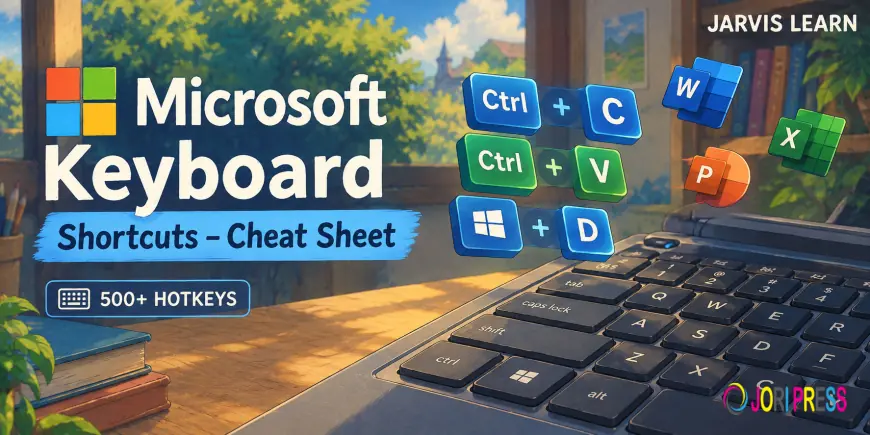
Productivity at work is rarely determined by how quickly someone presses a key. It depends on how efficiently they move between tasks, make decisions, and complete routine work without unnecessary interruptions. Yet many professionals spend their days switching between menus, searching for commands, and repeating actions that could be handled with a few keystrokes.
The problem is not a lack of available tools. Microsoft applications already include shortcuts for editing documents, analyzing spreadsheets, managing email, and coordinating meetings. The challenge is knowing which commands deserve a place in your daily routine.
Learning Microsoft Keyboard Shortcuts offers a practical starting point, but the real gains come from applying those commands consistently. Instead of memorizing hundreds of combinations, professionals can build a smaller, task-focused collection that makes everyday work more predictable and efficient.
Why Memorizing Hundreds of Shortcuts Is Not the Answer
Keyboard shortcuts are useful because they reduce the steps required to complete familiar actions. However, memorization alone does not guarantee better performance.
A professional might know dozens of commands but continue reaching for the mouse out of habit. Another person might use only five shortcuts regularly and save time throughout the workday because those commands match their most frequent tasks.
The difference is application.
Repeatedly switching between the keyboard and mouse can interrupt a familiar sequence of actions. While an individual interruption may seem insignificant, unnecessary navigation becomes more noticeable when repeated across document editing, spreadsheet analysis, email management, and online meetings.
A more effective approach starts with three questions:
-
Which actions do you repeat most frequently?
-
Which actions require you to interrupt your current workflow?
-
Which keyboard commands can replace those steps without sacrificing accuracy?
Answering these questions helps distinguish useful shortcuts from combinations that are unlikely to matter in your daily work.
Build a Core Set of Microsoft Keyboard Short Keys
Rather than approaching every application separately, start with commands that work across many Windows programs. These provide a foundation before you move into application-specific techniques.
Start With Everyday Editing Commands
The following shortcuts are useful in many common work situations:
| Shortcut | Function |
|---|---|
| Ctrl + C | Copy selected content |
| Ctrl + X | Cut selected content |
| Ctrl + V | Paste copied or cut content |
| Ctrl + Z | Undo the previous action |
| Ctrl + Y | Redo or repeat an action in supported applications |
| Ctrl + A | Select all content in the current context |
| Ctrl + F | Find text or content |
| Ctrl + S | Save the current file |
| Alt + Tab | Switch between open applications |
| Win + E | Open File Explorer |
These commands cover frequent actions without requiring a substantial learning commitment. Their value increases when they become part of a natural sequence rather than isolated tricks.
For example, editing a report might involve finding a phrase, selecting the relevant text, replacing it, and saving the document. Once those steps become familiar, there is less need to search through menus.
Apply Shortcuts Where They Make the Greatest Difference
The next step is to identify the applications that consume most of your working time. A spreadsheet-heavy role requires a different shortcut strategy from a position centered on writing or communication.
Microsoft Word: Keep Attention on the Document
In Word, prioritize commands that support drafting and revision.
-
Ctrl + B: Apply or remove bold formatting.
-
Ctrl + I: Apply or remove italic formatting.
-
Ctrl + U: Apply or remove underlining.
-
Ctrl + H: Open Find and Replace.
-
Ctrl + Enter: Insert a page break.
These commands are particularly useful when editing long reports, preparing proposals, or revising documents with repeated terminology. They help maintain focus on the content rather than the ribbon.
Microsoft Excel: Reduce Repetitive Navigation
Excel users often benefit from learning navigation and selection commands alongside basic editing shortcuts.
-
Ctrl + Arrow key: Move to the edge of a data region.
-
Ctrl + Shift + Arrow key: Extend a selection through a data region.
-
F2: Edit the active cell.
-
Alt + =: Insert an AutoSum formula in supported contexts.
-
Ctrl + 1: Open the Format Cells dialog box.
These commands can simplify work involving large datasets, recurring reports, and formula adjustments. As always, behavior can vary with the current selection, keyboard layout, and Excel version.
Turn Shortcuts Into Repeatable Habits
The most sustainable way to learn keyboard commands is through deliberate repetition during real work.
Choose three to five shortcuts that address your most common tasks. Use them consistently for a week before adding more. This creates an achievable learning process and makes it easier to notice which commands genuinely improve your workflow.
A simple routine can help:
-
Identify one repetitive task each morning.
-
Select a shortcut that replaces an unnecessary navigation step.
-
Use the command during normal work rather than practicing it in isolation.
-
Check whether it improves speed without increasing errors.
-
Keep the commands that provide clear, practical value.
Accuracy should remain the priority. A shortcut that saves a second but causes formatting mistakes or unintended edits may create more work than it eliminates.
Know When Shortcuts Are Not Enough
Keyboard commands are only one part of an efficient digital workflow. Repetitive reporting may benefit from Excel formulas or templates. Standardized documents may be easier to manage with Word styles. Recurring communication can often be streamlined through Outlook rules or reusable email templates.
The distinction is straightforward: shortcuts accelerate individual actions, while automation can reduce the need to perform entire sequences manually.
Professionals should evaluate both options instead of assuming every repetitive task requires another keyboard combination. A thoughtful combination of shortcuts, templates, and built-in automation can make work more consistent while reducing avoidable effort.
Make Productivity a Practice, Not a Memory Test
Effective keyboard use is not about demonstrating how many commands you know. It is about removing friction from the work you already do.
Start with familiar actions, focus on the applications you use most, and expand your collection only when a new command solves a recurring problem. Over time, these small improvements can create a more deliberate workflow without requiring a complete change in how you work.
For additional learning resources, practical tutorials, and guidance on developing digital skills, visit Jarvislearn.
What's Your Reaction?
 Like
0
Like
0
 Dislike
0
Dislike
0
 Love
0
Love
0
 Funny
0
Funny
0
 Angry
0
Angry
0
 Sad
0
Sad
0
 Wow
0
Wow
0