



































How to fixed Error 76 - Path not found in Legacy Family Tree
If you encounter Legacy Family Tree Error 76 – Path Not Found, don’t worry. This error often appears when the program cannot locate the correct file directory or media path
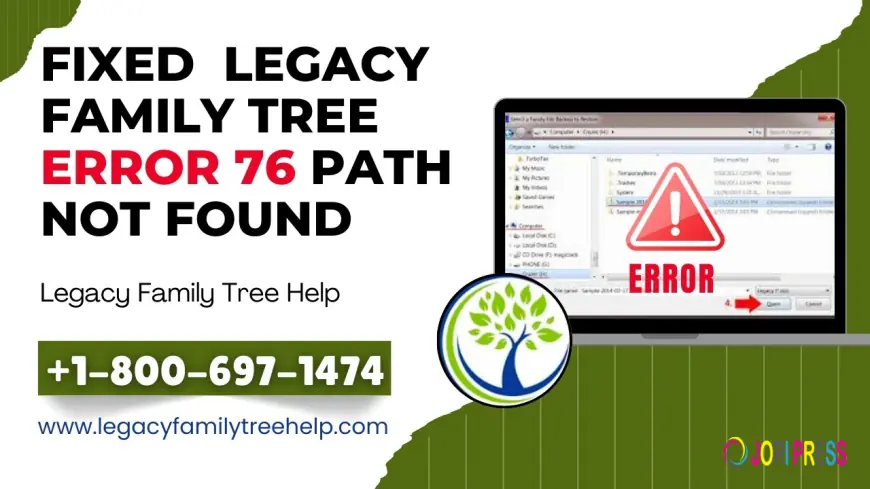
If you are seeing Legacy Family Tree Error 76 – Path Not Found, don’t worry. This is a common issue that usually occurs when the software cannot locate a required file or folder. In this guide, we’ll explain why Legacy Family Tree Error 76 happens and how you can fix it quickly.
What Is Legacy Family Tree Error 76?
Legacy Family Tree is a popular genealogy program used to organize and preserve family history records. Error 76 typically appears when the program tries to access a file path that no longer exists or has been moved, renamed, or deleted.
This error may occur while:
-
Opening a family file
-
Restoring a backup
-
Adding media files
-
Printing reports
The message usually reads, "Runtime Error 76 – Path Not Found.”
Why Does Legacy Family Tree Error 76 Occur?
Here are the most common reasons:
-
The family file folder was moved to another location
-
The media folder path changed
-
An external drive is disconnected
-
Cloud storage path (OneDrive/Google Drive) changed
-
Corrupted installation files
Understanding the cause makes it easier to fix Legacy Family Tree Error 76 permanently.
How to Fix Legacy Family Tree Error 76
1. Check the File Location
Make sure your family file (.fdb) is still stored in the original folder. If you moved it, open Legacy and manually browse to the new location.
2. Verify Media Folder Path
Go to:
Options > Customize > Locations
Confirm that the media folder path is correct. Update it if necessary.
3. Reconnect External Drives
If your files were saved on a USB drive or external hard drive, reconnect it and restart the software.
4. Restore from Backup
If the file path is damaged, restore a recent backup:
File > Restore Backup
This often resolves path-related errors instantly.
5. Reinstall the Software
If none of the above steps work, uninstall and reinstall Legacy Family Tree. Make sure you install it in the default directory to avoid path conflicts.
Pro Tip to Prevent Error 76 in the Future
-
Always keep files in the default Legacy folder
-
Avoid renaming system folders
-
Keep regular backups
-
Do not move files without updating paths inside the software
Conclusion
Legacy Family Tree Error 76 – Path Not Found is usually a simple folder location issue. By checking file paths, restoring backups, and verifying your media location, you can quickly resolve the problem and continue building your family history without interruption.
What's Your Reaction?
 Like
0
Like
0
 Dislike
0
Dislike
0
 Love
0
Love
0
 Funny
0
Funny
0
 Angry
0
Angry
0
 Sad
0
Sad
0
 Wow
0
Wow
0