




































How to Remove Duplicate EML Files in Windows 11
In this guide, you’ll learn about the causes of duplicate EML files, manual ways to remove them, disadvantages of manual methods, and how professional software can make the whole process easy and protect your precious email data.

Introduction
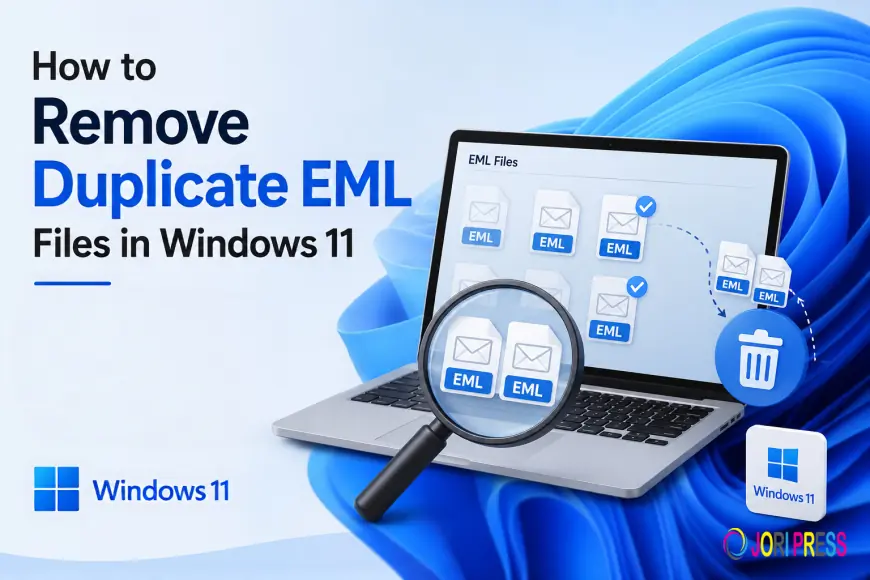
Duplicate EML files are quite common for Windows 11 users especially when backing up emails regularly, migrating mailboxes and importing EML files from different email clients. Over time, duplicate messages consume precious storage space, slow down email searches, and cause unwanted confusion in the handling of important conversations.
This problem becomes even more apparent when you combine multiple email archives or restore old backups. Many users are worried that deleting duplicate EML files may delete important emails by mistake or damage their existing folder structure.
The good thing is that you can delete the duplicate EML files without any risk to your original email data. In case you have just a few duplicate messages or you have thousands of EML files, there are solid ways to clean your email archive in no time.
In this guide, you’ll learn about the causes of duplicate EML files, manual ways to remove them, disadvantages of manual methods, and how professional software can make the whole process easy and protect your precious email data.
Reasons to Remove Duplicate EML Files
1. Free up Disk Space
Duplicate emails unnecessarily inflate your email archive. Deleting them helps free up valuable disk space, especially when you’re storing years of email backups.
2. Keep Email Archives Organized
Duplicate messages fill the mailbox making it difficult to find important discussions. Cleaning duplicates can help you stay organized and make managing your email easier.
3. Prepare for Email Migration
To have a cleaner and smaller mailbox and reduce migration time, it is a good idea to remove duplicate EML files before moving them to another email application.
4. Better Search Performance
Searching among duplicates makes the process slower. Removing unnecessary messages will help you find the information you need much faster.
5. Avoid backup confusion
Repeated backups often create multiple copies of the same emails. It helps keep backup folders clean and manageable by removing duplicate files.
Method 1: Manually Delete Duplicate EML Files
Best for: Those with a handful of duplicate EML files.
Steps
- On Windows 11, browse to the folder where your EML files are stored.
- Sort files by Name, Date Modified or Size.
- Look for files with the same name or similar attributes.
- Open suspicious files and compare with email contents.
- Only delete confirmed duplicates.
- Empty the Recycle Bin and check the remaining files.
Pros
- Free of charge.
- No additional software needed.
- Good for small collections of emails.
Cons
- Very time-consuming.
- Hard to find duplicates (but with different file names).
- Accidentally deleting important emails is easy.
Method 2: Comparing Email Properties
Best for: Users who want to do a thorough check for duplicate emails.
Steps
- Open the EML files with an email viewer that supports them.
- Check sender information.
- Recipient details check
- Look at the subject line.
- Check the date sent or received
- Please see attachments.
- Only remove confirmed duplicate messages.
Pros
- Very precise.
- Helps prevent accidental deletion.
Cons
- Slow, monotonous.
- Not practical for large archives.
Method 3: Organize EML Files Before Cleanup
Best for: Users with many email backup folders.
Steps
- Create a full backup of your EML files.
- Sort folders by project or backup date.
- Locate folders with duplicate imports.
- Delete unnecessary duplicate folders as necessary.
- Make sure that all the important emails are still there.
Pros
- Helps to manage emails easily.
- Helps to find duplicate collections.
Cons
- Does not automatically find duplicate emails
- Needs careful human inspection.
Professional Solution to Remove Duplicate EML Files
Manual methods are hard when duplicate emails are scattered across hundreds of folders or thousands of EML files. In such cases dedicated software provides a much safer and faster solution.
Softaken EML Duplicate Remover tool is a specialized application to search and delete duplicate EML files without affecting the original email archive. It scans multiple folders at once.
Batch processing The software can process thousands of EML files at once. The original email formatting, attachments, metadata, and folder hierarchy are preserved during the process and the rest of the mailbox remains unchanged.
With its simple interface, it is suitable for both home users and IT professionals working with large email archives on Windows 10.
Main Features & Benefits
- Safely removes duplicate EML files.
- Supports batch processing of several folders
- Preserves email formatting.
- No change to attachments.
- Preserves metadata.
- Keeps original folder structure.
- Easy-to-use interface.
- Windows 11 fully compatible.
Last Words
Having multiple copies of the same EML files can fill up your email archive, waste storage space and make it a lot harder to manage your emails than it has to be. Even using the basic file management tools provided by Windows 11, manually identifying duplicate emails is a time-consuming and error-prone process.
If you have only a few duplicate files, you can do it by hand. But for large email archives or multiple backup folders, a dedicated solution offers a much more reliable experience.
Softaken EML Duplicate Remover makes it easier to clean the mess by finding duplicate emails and deleting only extra copies not disturbing your original emails, attachments, metadata and folder organization. Whether you’re saving personal email backups or work records, choosing the right method will save you time and keep your EML archive neat.
Frequently Asked Questions
1. Can I delete duplicate EML files without having to install Thunderbird?
Yes. EML duplicate removal tool are designed specifically for EML files and do not require Thunderbird or Outlook.
2. Will my email attachments remain safe?
Yes. Good duplicate removal software will keep attachments on the remaining, original e-mail messages.
3. Is there a way to batch process multiple EML folders?
Yes. Professional tools provide batch support so that you can scan and clean multiple folders at once.
4. How are duplicate EML files detected?
Most professional tools compare sender, recipient, subject, message body, attachments and timestamps to identify duplicate emails accurately.
5. Is EML Duplicate Remover suitable for Windows 11?
Yes. The software is compatible with all versions of Windows 11 and works efficiently to find and delete duplicate EML files without affecting email or folder structure.
What's Your Reaction?
 Like
0
Like
0
 Dislike
0
Dislike
0
 Love
0
Love
0
 Funny
0
Funny
0
 Angry
0
Angry
0
 Sad
0
Sad
0
 Wow
0
Wow
0