

































How to Reduce PDF File Size on Android
Are you struggling with large PDF files slowing down your Android device or making it hard to share important documents? You’re not alone.
We've all been there—you need to email an important document or share it via WhatsApp, but that PDF is simply too large. Android devices, while powerful, often come with limited storage, and massive PDF files can quickly eat up your available space.
Whether you're a student submitting assignments, a professional sharing reports, or someone organizing personal documents, knowing how to reduce PDF file size on Android is essential. The good news? You don't need technical expertise or expensive software.
This guide walks you through practical, effective methods to compress your PDFs directly from your Android device, ensuring your files are shareable, storable, and still high-quality.
More info: Techfutureguide.com
Why PDF Files Become Too Large on Android
Before diving into solutions, it helps to understand why PDFs balloon in size. PDFs often contain high-resolution images, embedded fonts, complex graphics, and multiple layers of data. When you scan documents or export files from design software, the default settings prioritize quality over file size. On Android devices, where storage optimization matters, these oversized files create real problems—they slow down sharing, consume precious memory, and sometimes fail to upload entirely.
Additionally, many Android users work with PDFs daily for business, education, or personal organization. Without compression, a single folder of documents can occupy gigabytes of space. Understanding this context makes it clear why learning how to reduce PDF file size on Android isn't just convenient—it's necessary for efficient device management and seamless document sharing in our increasingly mobile world.
How to Reduce PDF File Size on Android: Built-in Methods
You don't always need third-party apps to compress PDFs. Your Android device comes with native features that can help reduce file sizes quickly and securely.
Using Google Drive
Google Drive offers a simple compression feature that many users overlook:
- Open the Google Drive app on your Android device
- Tap the "+" icon and upload your PDF file
- Once uploaded, locate the file and tap the three-dot menu
- Select "Open with" and choose Google Docs
- The file will convert to an editable format
- Go to File > Download > PDF Document
- The newly downloaded PDF will typically be smaller
This method works particularly well for text-heavy documents, though some formatting may shift during conversion.
Using the Print to PDF Feature
Android's built-in print function can also compress files:
- Open your PDF using any viewer app
- Tap the menu icon (three dots) and select "Print"
- Instead of choosing a printer, select "Save as PDF"
- Tap the download or save icon
- Choose your destination folder
- The system creates a new, often smaller version
This native approach maintains reasonable quality while reducing size, making it ideal for quick compression without installing additional software.
How to Reduce PDF File Size on Android: Best Apps
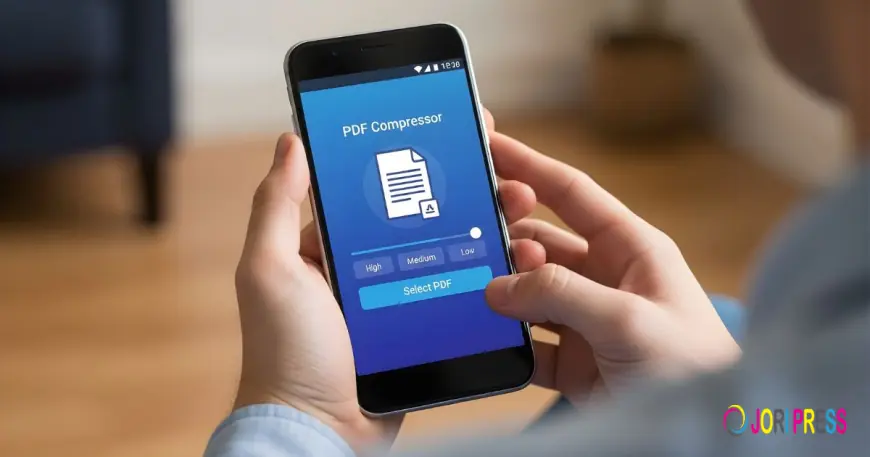
When built-in methods don't deliver the compression you need, dedicated PDF compressor apps step up as powerful allies. These specialized tools are designed specifically for Android, offering intuitive interfaces and advanced compression algorithms that balance file size reduction with quality preservation. Unlike desktop software requiring complex setups, these apps work directly on your device, processing files locally or through secure cloud servers.
The beauty of using dedicated apps lies in their flexibility—you can choose compression levels, batch-process multiple files simultaneously, and often access additional features like PDF merging, splitting, or password protection. Popular options include Adobe Acrobat Reader, which offers reliable compression alongside comprehensive PDF management tools, and smaller, focused apps like PDF Compressor that prioritize speed and simplicity.
Many of these applications operate on freemium models, providing basic compression for free while reserving advanced features for premium users. When selecting an app, consider factors like user reviews, privacy policies, and whether offline processing is available—especially important when handling sensitive documents. The right app transforms a tedious task into a seamless experience, letting you shrink files in seconds with just a few taps.
Top PDF Compressor Apps for Android
|
App Name
|
Best For
|
Offline Mode
|
Rating
|
|---|---|---|---|
|
Adobe Acrobat Reader
|
Professional use
|
Partial
|
4.5/5
|
|
PDF Compressor
|
Quick compression
|
Yes
|
4.3/5
|
|
iLovePDF
|
Multiple features
|
No
|
4.4/5
|
|
Smallpdf
|
User-friendly
|
No
|
4.2/5
|
|
Xodo PDF
|
Editing + compression
|
Yes
|
4.6/5
|
Online Tools to Reduce PDF File Size on Android
Sometimes you need a solution without installing anything, and that's where online PDF compression tools shine. These web-based platforms work directly through your Android browser, eliminating the need for app downloads while delivering impressive compression results. Services like Smallpdf, iLovePDF, and PDF2Go have optimized their mobile interfaces specifically for Android users, ensuring smooth operation even on smaller screens.
The process is straightforward: you upload your file from your device or cloud storage, select your preferred compression level, and download the optimized version within seconds. What makes these tools particularly valuable is their accessibility—you can compress PDFs on any Android device without worrying about storage space for additional apps.
Most platforms also offer batch processing, allowing you to compress multiple files simultaneously, which saves considerable time when managing large document sets. Security-conscious users will appreciate that reputable services automatically delete uploaded files from their servers after processing, typically within an hour.
However, it's worth noting that online tools require stable internet connectivity, and extremely large files may take longer to upload and process. For occasional compression needs or when working on a borrowed device, these browser-based solutions provide the perfect balance of convenience and functionality without compromising on quality.
Quick Comparison: Online vs. App-Based Compression
Online Tools:
- No installation required
- Accessible from any device
- Requires internet connection
- Best for occasional use
Dedicated Apps:
- Work offline
- Faster processing
- Better privacy control
- Ideal for frequent use
Maintaining Quality While Reducing PDF Size
The biggest concern when compressing PDFs is maintaining readability and professional appearance. Fortunately, modern compression methods use smart algorithms that reduce file size without noticeable quality loss. When compressing, focus on reducing image resolution to 150 DPI for screen viewing—this dramatically cuts size while keeping text crisp. Remove unnecessary embedded fonts if the PDF uses standard typefaces, and eliminate hidden metadata or duplicate elements.
For documents with scanned images, consider using OCR (Optical Character Recognition) to convert images to text, which significantly reduces size. Most quality apps and tools offer preview features, letting you compare the original and compressed versions before saving. Always test your compressed PDF by opening it on different devices to ensure compatibility. Remember, the goal isn't maximum compression but optimal balance—a file that's small enough to share easily while remaining professional and legible.
Troubleshooting Common Compression Issues
File still too large? Try compressing images separately before creating the PDF, or split the document into smaller sections.
Quality looks poor? Increase the DPI setting or choose "medium compression" instead of "high compression."
App crashes during compression? Ensure you have sufficient RAM available and try closing background apps.
Format issues after compression? Use apps that preserve original formatting, like Adobe Acrobat Reader.
Conclusion
Learning how to reduce PDF file size on Android doesn't have to be complicated. Whether you use built-in features like Google Drive and Print to PDF, download dedicated compression apps, or leverage online tools, you now have multiple effective strategies at your disposal.
Remember to balance file size with quality, choose methods that fit your specific needs, and always verify your compressed documents before sharing. Start compressing your PDFs today and reclaim valuable storage space on your Android device. Which method will you try first?
What's Your Reaction?
 Like
0
Like
0
 Dislike
0
Dislike
0
 Love
0
Love
0
 Funny
0
Funny
0
 Angry
0
Angry
0
 Sad
0
Sad
0
 Wow
0
Wow
0

drionsfrioms
TechFutureGuide: Your ultimate destination for the latest technology trends, expert guides, and future innovations.
\