





















How to Install Google Play Store on Samsung Smart TV
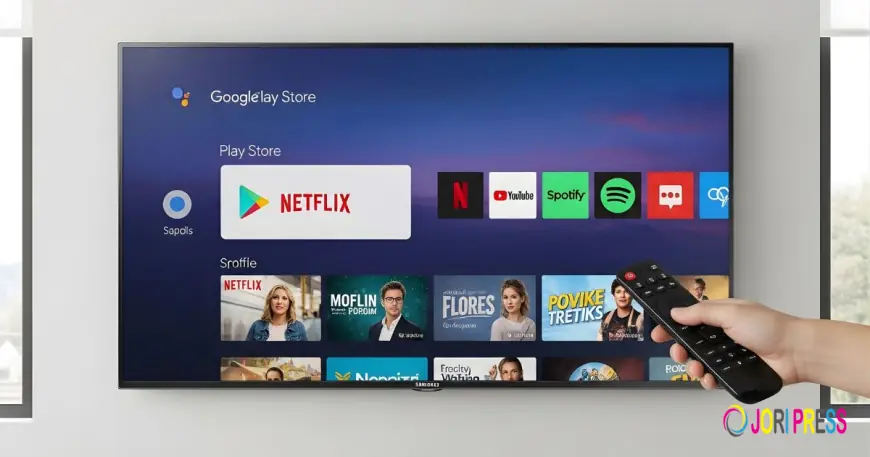
Are you ready to unlock a whole new world of apps on your Samsung Smart TV? Installing the Google Play Store can transform your viewing experience, giving you access to thousands of apps, games, and streaming services right on your big screen.
How to Install Google Play Store on Samsung Smart TV
If you've ever sat in front of your Samsung Smart TV, remote in hand, wondering why Google Play Store isn't there — you're not alone. Millions of Samsung TV owners ask the same question every day. Here's the thing: Samsung Smart TVs run on Tizen OS, not Android, which means the Google Play Store isn't natively supported. But that doesn't mean you're stuck. There are legitimate, effective ways to expand your app library, sideload APKs, and even mirror content from Android devices. This guide walks you through everything clearly, so by the end, you'll know exactly what your options are and how to make the most of your Samsung Smart TV experience.
More info: techfutureguide.com
Why Google Play Store Doesn't Come Pre-Installed on Samsung Smart TVs
Before diving into solutions, it helps to understand the "why." Samsung Smart TVs use Tizen OS — a Linux-based platform developed by Samsung and Intel. Google Play Store is an Android ecosystem product, and since Tizen isn't Android, Google's app marketplace simply isn't compatible in the traditional sense.
This is fundamentally different from Android TV or Google TV, which you'll find on Sony, TCL, or Hisense models. Those platforms are built on Android, so the Play Store integrates naturally. Samsung made a deliberate choice to develop its own ecosystem, which gives it tight hardware-software control but limits direct Google Play access.
That said, Samsung's Smart Hub and its built-in app store offer hundreds of popular apps — Netflix, YouTube, Disney+, Prime Video, and more. For most users, it covers the essentials. But if you're chasing a specific app that's missing, the workarounds below will be your best friends.
How to Install Google Play Store on Samsung Smart TV Using an External Device
This is the most reliable method — and frankly, the most practical one. Since Tizen OS can't run the Play Store natively, the cleanest solution is connecting an external Android-based device to your TV.
Method 1: Use a Google Chromecast with Google TV
What you need: Google Chromecast with Google TV dongle, HDMI port on your TV.
Steps:
- Plug the Chromecast into your Samsung TV's HDMI port.
- Power it using the USB cable (either into the TV's USB or a wall adapter).
- Follow the on-screen setup and sign in with your Google account.
- Once set up, you'll have full access to the Google Play Store directly on your TV screen.
- Browse, download, and install any app just like you would on a phone or tablet.
This method essentially transforms your Samsung TV into a Google TV experience without replacing your existing setup. The Chromecast sits discreetly behind the TV, and you switch inputs whenever you want access to Play Store apps.
Method 2: Use an Amazon Fire TV Stick or Android TV Box
Steps:
- Connect the Fire TV Stick or Android TV Box to your Samsung TV via HDMI.
- Power it on and complete the device setup.
- For Android TV Boxes, the Google Play Store is typically pre-installed.
- Sign in with your Google account and start downloading apps.
- Use your TV's input selector to toggle between Samsung's Tizen interface and the Android device.
This method is cost-effective and incredibly flexible. Android TV Boxes, in particular, offer a pure Android experience with the Play Store fully intact. You essentially get two smart TV systems in one screen.
How to Install Google Play Store on Samsung Smart TV by Sideloading APKs
Here's where things get a little more technical — but don't worry, it's manageable. If you want to install a specific app that isn't in Samsung's app store, sideloading APKs is a popular workaround. However, it's important to understand what this actually means before you proceed.
Sideloading means installing an app package (APK file) directly onto your TV without going through an official store. On Samsung Tizen TVs, this is possible using developer mode, a built-in feature Samsung provides for app testing. You'll need a computer, a USB drive or local network connection, and the APK file of the app you want. The process involves enabling developer mode in your TV's settings, connecting your computer to the same Wi-Fi network, and using Samsung's development tools to push the APK to your TV. It's worth noting this doesn't install the full Play Store — it installs individual apps. Also, not every Android APK will run on Tizen OS since the underlying architecture is different. Apps built specifically for Android may behave unpredictably or not launch at all. Always download APKs from trusted, verified sources to avoid security risks.
Step-by-Step: Enable Developer Mode on Samsung Smart TV
- Go to Settings > Support > About Smart TV.
- Note your TV's IP address from the network settings.
- On your TV remote, press Home five times rapidly to trigger the developer mode prompt.
- Enter the IP address of your development computer when prompted.
- Restart your TV — developer mode is now active.
- Use Samsung's Tizen Studio on your computer to sideload APK files.
Alternative: Screen Mirroring and Cast Options
If sideloading feels too complex, screen mirroring is a hassle-free alternative. Using your Android smartphone or tablet, you can mirror any app — including those from Google Play — directly onto your Samsung TV screen.
Samsung TVs support Smart View (Samsung's mirroring app), Google Cast, and Miracast. Simply open the app on your phone, tap the cast icon, and select your Samsung TV. The experience is nearly seamless for streaming apps, games, and even presentations.
Samsung's App Store: Better Than You Might Think
It's worth giving Samsung's native app ecosystem a fair evaluation. The Samsung Smart Hub app store has expanded dramatically over recent years. Major streaming services, fitness apps, news platforms, and even cloud gaming services like Xbox Cloud Gaming are now available directly. Before going through the trouble of external devices or sideloading, check whether your desired app is already there — you might be pleasantly surprised.
Conclusion
So, can you install Google Play Store on Samsung Smart TV? Not natively — but you absolutely have options. The most seamless solution is connecting a Chromecast with Google TV or an Android TV Box via HDMI. For advanced users, sideloading APKs through developer mode works for specific apps. And for casual users, Samsung's own app store combined with screen mirroring covers most everyday needs.
The key takeaway: learning how to install Google Play Store on Samsung Smart TV isn't about one magic fix — it's about choosing the right method for your situation. Pick the approach that fits your comfort level and start enjoying a fuller app experience on your Samsung TV today.
What's Your Reaction?
 Like
0
Like
0
 Dislike
0
Dislike
0
 Love
0
Love
0
 Funny
0
Funny
0
 Angry
0
Angry
0
 Sad
0
Sad
0
 Wow
0
Wow
0