






































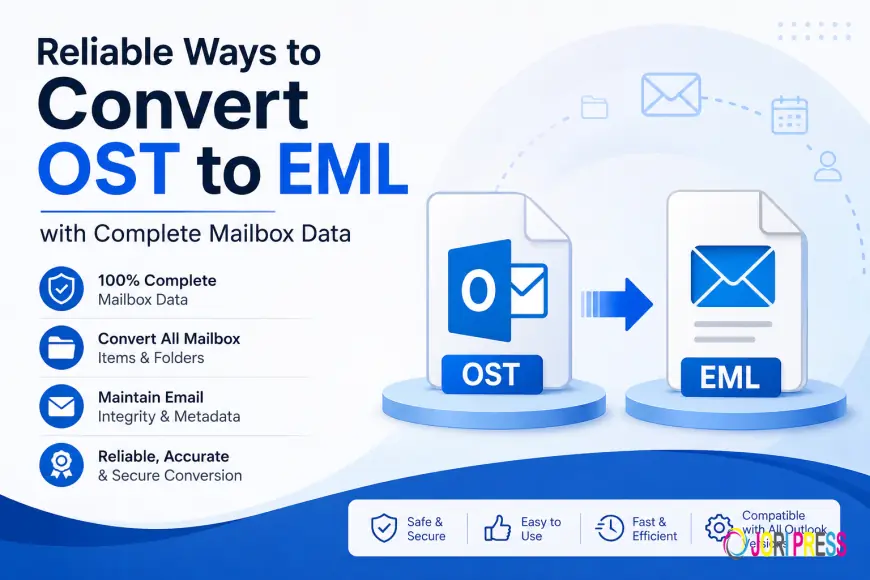
Reliable Ways to Convert OST to EML with Complete Mailbox Data

When Microsoft Outlook is linked to Exchange Server or an IMAP configured in it, it creates an Offline Storage Table or OST file. Also, a new OST file is created when Office 365 Outlook 2016 is configured by a user.
Now the problem is, an OST file is only supported by Outlook, and in case of migration, a user needs to convert it to some other format.
Otherwise, when the existing profile is deleted by a user, a new OST file is produced. But if a user conducts the profile reset, then also Outlook continues to use a fresh OST file rather than the current one. In all such cases, if a user wants to utilize and open an OST file, he or she needs to export the OST file to an EML file or other file format.
The EML file format is the common format that is supported by the number of email clients among the different file formats present.
For example, Windows Live Mail, Thunderbird, etc. So the Outlook OST to EML conversion will automatically boost the possibilities to access OST files in many email clients.
- After all this research and knowledge, users only want the answer to export OST data into EML format.
- And how can it be done without compromising the integrity of data.
- Is there any manual or OST to EML converter available.
- What is the best way to execute the task.
If you also have any such query in your mind, then you are at the proper place. This essay will definitely answer any such queries and help you know how to accomplish Outlook OST file to EML conversion.
How to Export OST to EML File Format?
No direct solution is available to convert OST files to EML file format.
Moreover, with the help of two possible scenarios, you can export an OST file to EML.
Case 1 – Connected OST file to Exchange Server
Case 2 – Disconnected OST file
Now methods are different for two different circumstances. To know about the same, continue reading a blog.
When Outlook is connected to Exchange Server
If a user’s Outlook profile is connected to Exchange Server, then the process of converting Outlook OST to EML is divided into two phases. But before you begin the conversion, there are a few prerequisites that need to be met.
Manual Steps to Convert OST to EML Format
As indicated above, there is no direct manual solution available; hence, it is separated into three main categories, i.e.,
- Transfer OST File Data to Configured Gmail Account
The user needs to copy/move the desired OST file data to the configured Gmail account to initiate the conversion process. All he or she has to do is drag and drop the data to do the same. - Mozilla Thunderbird Same Gmail Account
Then, it’s time for the user to configure the same Gmail account in Mozilla Thunderbird. When user is done with configuration process, all its gmail info is in Thunderbird account automatically. Meaning, Outlook OST file data is now also in Thunderbird. - EML File Extraction from Thunderbird
After the user is done with configuring the procedure in Thunderbird, now it’s time to export the EML file from it. The user just has to access OST file contents in Thunderbird and then drag and drop to any desired location on the local PC. It will immediately create an EML file at the desired location.
Why not rely on OST to EML conversion manually
Export Orphan OST to EML File Format
There is no manual way accessible that will be useful to convert a disconnected OST file into EML format.
Therefore, to tackle such types of circumstances, commercial solutions come to mind. In this case, a user can go with the OST to EML converter application by Softaken OST to EML Converter software to convert OST mailboxes to EML files. This software also provides an option to export OST files to EML. This is one of the top-selling solution in the industry that helps users convert OST to EML format in any feasible scenario.
How to Convert OST to EML: Step-by-Step Guide
- Download & Install the Tool on your PC.
- Now click on the Add File button and browse the OST file you want to convert.
- Preview the mailbox data of the OST file & click the Export button.
- Now choose the EML file format and browse the location to save data.
Summary
No one wants to lose even a single bit of information from an OST file. So, when it comes to the conversion of OST files, a possibility of data loss is one of the primary concerns among the users. Keeping these points in mind, this article will guide users to convert OST to EML file format without any data loss. Depending upon the type of OST file and the number of emails stored in it, a user can choose either a manual or professional OST to EML converter strategy for converting the OST file to EML.
What's Your Reaction?
 Like
0
Like
0
 Dislike
0
Dislike
0
 Love
0
Love
0
 Funny
0
Funny
0
 Angry
0
Angry
0
 Sad
0
Sad
0
 Wow
0
Wow
0