

































WholeClear MSG to VCF Converter Review 2026: Speed, Features, and Accuracy Test

Summary
MSG files are often used by Microsoft Outlook to store individual email, contacts and other message related information. However, users may come across problems while trying to access or migrate the contact information stored in MSG files to other platform. Migration is a time-consuming process because of compatibility issues, unsupported formats, missing contact details and large number of MSG files.
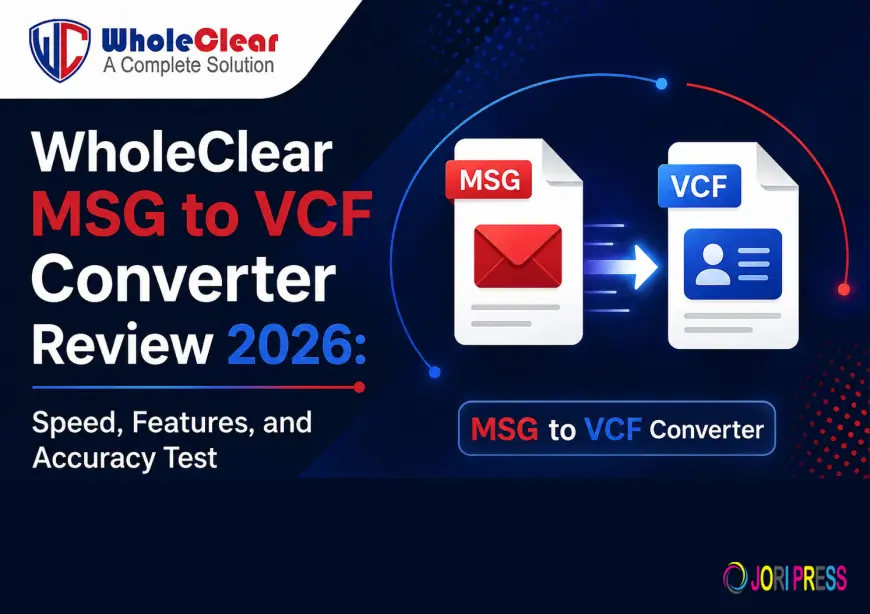
One practical method is to convert MSG contacts to VCF (vCard) format. VCF is a widely supported contact format and can be used with a number of email clients, contact applications, smartphones and other platforms. WholeClear MSG to VCF Converter is designed to export MSG contacts to VCF in bulk with the contact information preserved. It can do the conversion without installing Microsoft Outlook.
Common MSG to Outlook Conversion Problems
Users may face various problems while working with MSG contact files. Some common problems are:
- MSG files not loading or scanning properly.
- Contact info is missing after conversion.
- Processing large numbers of MSG files manually is a time-consuming process.
- ANSI and Unicode MSG files cause compatibility issues.
- Microsoft Outlook is not installed on the destination computer.
- Contacts, images, phone numbers, addresses and notes may not transfer correctly.
- Users need to convert entire MSG folder rather than converting files one by one.
Opening each MSG file in Outlook manually can be a boring task, converting the required contacts into VCF can be a more convenient approach. WholeClear supports bulk MSG folder conversion and claims to support both ANSI and Unicode MSG files.
MSG Files Not Scanning And Loading
A frequent problem is that MSG files fail to load correctly in migration. It can happen when files are incompatible, source files are damaged or an incompatible application.
Answer:
First, make sure that the MSG files are accessible where they are stored. If a large number of files are involved, place them into a well-organized folder and use a dedicated MSG conversion application.
WholeClear MSG to VCF Converter provides users with an option to browse and load an MSG file or a complete folder containing MSG files. When the scan is complete, the software shows the number of items. This helps users to check whether all needed files are found for conversion.
Outlook doesn't find migrated data
Another problem is when users want to move MSG contact data to a system that does not have Outlook, or when users need the contacts in a different application.
Solution
Use VCF format for contact information instead of relying solely on Outlook. VCF is intended for contact interchange, and can be read by many contact management applications and devices.
WholeClear MSG to VCF Converter is a standalone application which does not require installation of Microsoft Outlook for MSG to VCF conversion. The vendor also claims that the software supports MSG files from many versions of Outlook.
After Migration Missing Contact Details
Contact information does not have to be limited to a person’s name and email address. Users may also need to have phone numbers, addresses, notes, photos, logos and other information.
Reply
Select a conversion method that retains the available contact fields during migration. WholeClear claims its MSG to VCF Converter can preserve details like first, middle, last names, mobile numbers, home and office addresses, email IDs, notes, logos, photos and pictures.
Once converted, open a couple of VCF files and check important fields before deleting the original MSG files.
Batch MSG Conversion Problem
Converting hundreds of MSG files one by one is not efficient and increases the chance of missing files.
Answer.
Don’t convert each MSG file one by one, use batch conversion. WholeClear MSG to VCF Converter helps you to load multiple MSG files simultaneously and run an entire folder of MSG files. The product page says that it has no file-size or file-number limitation for conversion.
Before starting the conversion, for better organization, keep related MSG contacts in separate folders.
MSG Compatibility Issues Unicode and ANSI
MSG files can have different types of encoding such as ANSI and Unicode. Compatibility issues may occur when a conversion application does not support the source file type.
Resolution
Use a converter that can handle both encodings. WholeClear also mentions support for ANSI and Unicode MSG files specifically, which allows users to manage different kinds of Outlook MSG contact files in the same application.
It is still recommended to test on a small set of files and inspect the resulting VCF contacts before attempting a large migration.
MSg file size or number problems
When there are a lot of MSG files, it is difficult to migrate them manually. Also, processing files one by one takes a considerable amount of time.
Answer
This is not suitable for large collections where a batch based approach for conversion is more appropriate. WholeClear says its application allows loading multiple MSG files at once and supports MSG folders with large numbers of contact files. There are also no file-size barriers, according to the vendor.
Break very large collections into logical folders for safety. Check output after each conversion session.
Troubleshooting Outlook Installation
The user might not have Microsoft Outlook installed on the computer where the MSG files are stored. This can be problematic if the migration method uses Outlook.
Answer: :
Use the standalone MSG conversion application that reads MSG file independently. WholeClear MSG to VCF Converter doesn’t need to install Microsoft Outlook to convert MSG contacts to VCF format.
This is useful in the case when users have MSG files archived, but they do not use Outlook on their computer now.
MSG to VCF Converter Solves Migration Issues
WholeClear MSG to VCF Converter has a lot of features that make the MSG contacts migration easier:
- Batch Conversion: Import multiple MSG files or a complete MSG folder at once.
- No Outlook Needed: You don't need Microsoft Outlook to install.
- ANSI & Unicode Support: Supports common MSG encoding types.
- Contact Preservation: Preserves existing contact information including names,
- phone numbers, addresses, emails, notes, photos, and logos.
- Multiple Outlook Versions – Supports MSG files created in different versions of Outlook.
- Item Count: Shows the number of items scanned before conversion.
- Output Location Flexibility: Users are able to specify where the generated VCF files are to be saved.
- Windows Compatibility: Compatible with 32-bit and 64-bit Windows.
- Trial Version: The trial version enables users to export up to 25 MSG files before purchasing a license.
These features make the tool quite useful for users who need to extract and migrate contact information from a large number of MSG files.
Step by step troubleshooting approach
If you experience problems when migrating MSG contacts, follow these steps:
Step 1: Arrange MSG Files
Gather all the required MSG files in a single folder. Keep non-related files separate so that you don't convert unnecessary contacts.
Step 2: Install and run the converter
Download and install WholeClear MSG to VCF Converter on a suitable Windows PC.
Step 3: Load .msg files
Select a single MSG file or a complete MSG folder using the Browse option. The software will scan the data you select and show you how many items it can find.
Step 4: Look at the Data You Have Selected
Verify that the required MSG files were located. If files are missing check their location and permission and continue.
Step 5: Select VCF as the Format Output
Please select VCF/vCard as the target format to convert the contact.
Step 6: Choose the destination folder
Select destination location to save converted VCF files. Figure 3: A dedicated output folder makes verification easier.
Step 7: Initiate the Conversion
Hit the convert option to start the export of MSG contacts to VCF format.
Step 8: Check the Converted Contacts
Open the converted VCF files and verify the names, email addresses, phone numbers, addresses, notes, and other important fields. Check images or logos if it is important.
Step 9: Import Contacts from VCF
Once the conversion is successfully verified, import the VCF contacts to your desired compatible contacts application, email platform or device.
Conclusion
MSG migration issues can be occurred when users want to access Outlook contact information outside of MSG environment. The manual conversion becomes very difficult in case of hundreds of thousands of MSG files. The Outlook dependency and encoding compatibility can also pose additional challenges.
Since VCF is a popular format for exchanging contacts, converting MSG contacts to VCF is a useful alternative. WholeClear MSG to VCF Converter supports batch conversion, ANSI and Unicode MSG files, multiple Outlook editions, contact-detail preservation, and conversion without requiring Microsoft Outlook.
For best results, always organize your source MSG files, test a small number of contacts first, verify the converted VCF data, and keep the original files safely backed up until the migration has been completed successfully.
Frequently Asked Questions
1. How to convert MSG contacts to VCF without Outlook?
Yes, WholeClear claims that you don’t need to have Microsoft Outlook installed to convert MSG contacts to VCF.
2. Can I convert several MSG files simultaneously?
Yes. The software is capable of batch conversion and can load multiple MSG files or a folder of MSG files.
3. Is the converter able to import ANSI and Unicode MSG files?
Yes, WholeClear MSG to VCF Converter supports both ANSI & Unicode MSG files.
4. Is the contact information up to date?
The tool retains contact information such as names, phone numbers, addresses, email IDs, notes, logos, photos, and pictures during the conversion process, according to WholeClear.
5. Can I set the location to save the converted VCF files?
Yes. The software enables saving the resultant VCF files to a user defined location.
More info :- wholeclear.com/converter/msg-to-vcf/
What's Your Reaction?
 Like
0
Like
0
 Dislike
0
Dislike
0
 Love
0
Love
0
 Funny
0
Funny
0
 Angry
0
Angry
0
 Sad
0
Sad
0
 Wow
0
Wow
0