







































Transfer Old Outlook Express Emails from DBX to PST Format
Transfer old Outlook Express emails from DBX to PST format easily. Convert emails, attachments, and folders to Outlook PST with secure and accurate migration.

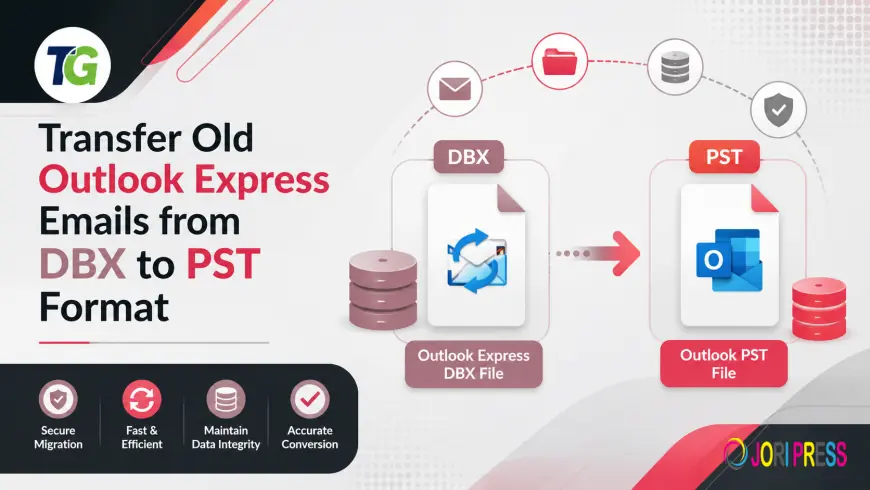
Transfer Old Outlook Express Emails from DBX to PST Format
There are certain emails that are worth keeping forever. Approvals from clients, business deals, personal achievements, years of work-related emails — all hidden within the dusty folders of your old Outlook Express. The problem isn't that these emails have been lost; they are safely stored within the files. However, the problem is that you won't be able to access any of it using what you've got at hand today.
If this sounds like you, then you came to the right place. There is one simple way to convert old Outlook Express emails from DBX to PST file format and get your data back easily.
Why DBX Files Become Inaccessible Over Time
Outlook Express is a lightweight mail program that used to come together with Microsoft’s Windows. Every mailbox folder was saved separately as DBX files. That is, a single DBX file for an inbox, another DBX file for outgoing messages, and even more for any custom folders that you may have created.
However, with the discontinuation of the Outlook Express, this system of storage no longer worked.
Here's why accessing them gets harder with every passing year:
• There are no contemporary email clients that support DBX by default. No MS Outlook, Thunderbird, Apple Mail allows you to import an email message from a DBX file. That is just how it is. There is simply no way.
• Making Outlook Express work nowadays is impossible. Designed for Windows XP, Outlook Express requires quite an effort to be run in the current environment, and there is no guarantee of success.
• DBX is not immune to corruption. The more time passes since you stopped using Outlook Express, the higher chances that the format will be damaged become. Sooner than later, you need to get the files converted.
• And finally, PST is a future-safe solution. All versions of MS Outlook, Office 365, and Exchange will be able to handle your emails for many years to come after converting to PST.
What's Inside Those Old DBX Files?
Before going ahead with the transfer process, it helps to understand exactly what kind of data is being transferred. A DBX file contains different types of information according to its nature. These include:
• Email messages that include their text content, subject lines, formatting, and any pictures within the email.
• Pictures and other kinds of file attachments sent via e-mail during many months.
• Information about the sender and recipients of each email, like from, to, CC, and BCC information
• The original time stamps so that your emails can be arranged chronologically.
• The information about read/unread messages so that you know all the emails that have been opened before.
If done correctly, a DBX to PST conversion process will transfer all of this data without losing or changing anything.
How to Transfer DBX Emails to PST — Step by Step
The whole process is straightforward and doesn't require any technical expertise. Here's what it looks like:
Step 1: Installation of the converter Install the program on your PC running Windows. It’s just a small program without any Outlook installation process involved, and without the need to install other plug-ins or anything else before you begin working.
Step 2: Find and import DBX file Launch the program and choose where the DBX file you want to convert resides. DBX files tend to accumulate in strange places – inside various AppData directories, located on an older drive or archived on a computer you used earlier on. No matter where the file is stored, the program will extract its content.
Step 3: Get a quick preview Before you start converting your emails into another format, have a look at what you’ll get after completing the operation. You will see all emails, folders and attachments contained in the file. This way, you can make sure that the file is the correct one and it contains all information you want to save.
Step 4 - Decide which messages to transfer Not all messages within a database should be exported necessarily. You may decide to select only particular folders, or limit by time frames and message categories. Such an approach comes handy when working with huge archives or recovering messages from certain time intervals only.
Step 5 - Pick PST as your target format Selecting PST will allow to export emails from OE into MS Outlook. However, when you are moving email account from Outlook Express to another platform, for example, Thunderbird, Apple Mail or Windows Live Mail, then other formats can be chosen too: EML, EMLX or MBOX.
Step 6 - Pick up destination file The resulting PST can either be saved as a separate file, or messages can be added to an existing PST archive. It is particularly useful if you wish to transfer messages stored in several different DBX files to be in one organized folder later.
Step 7 - Start conversion Once everything has been selected, run the process of transferring emails. The program accurately processes information from the source file, preserves folders in their entirety and exports a PST file that can be easily opened directly in MS Outlook.
What Separates a Good Transfer Tool from a Bad One
However, not all tools handle old DBX files in the same manner. Here are the factors that will help you decide:
• Full data migration - complete migration, from emails to attachments to metadata fields, free of any corruptions or omissions
• Aged and large DBX file migration capability – old files saved using outdated computer equipment need special attention; no issues should arise while processing such files
• Specific migration features – filtering of emails at a folder level as well as time-based filtering
• Software-independent - works irrespective of the absence of Outlook Express and MS Outlook on your system
• File previewing facility before the actual migration – a must-have feature
• Output file formats – PST takes the precedence, although others, like EML, EMLX, and MBOX formats, add to the utility
Recommended Tool
The application ToolsGround Transfer Old Outlook Express Emails From DBX To PST Without Data Loss is specifically designed for this task. The tool will work with your DBX files regardless of their size and age, transfer all emails, attachments, and data without losing them, and retain your folder hierarchy in its initial state. Previewing of the email is another advantage which allows you to see what emails you are working with and avoid any mistakes during the conversion process, and an easy-to-use interface will let you easily understand everything even if you have no prior experience with that.
Wrapping Up
Your older emails stored within the DBX file format need not remain hidden anymore. Converting your Outlook Express emails from DBX file format to PST will ensure that you receive all the years worth of correspondence stored within the DBX file and convert it into an easy-to-use and easily searchable form within Outlook.
This is a quick task and does not require any prior knowledge about computers or technology.
What's Your Reaction?
 Like
0
Like
0
 Dislike
0
Dislike
0
 Love
0
Love
0
 Funny
0
Funny
0
 Angry
0
Angry
0
 Sad
0
Sad
0
 Wow
0
Wow
0