









































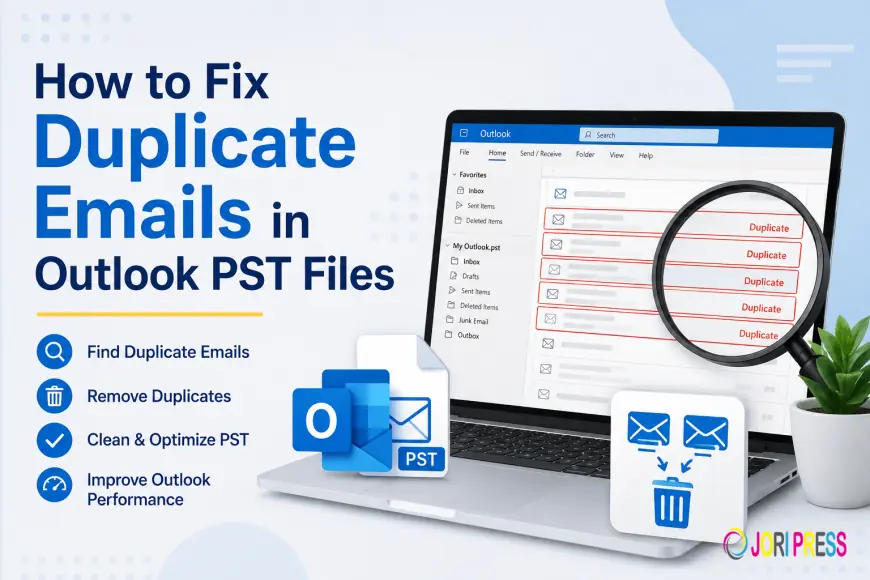
How to Fix Duplicate Emails in Outlook PST Files
This guide will walk you through the reasons for duplicate emails in Outlook PST files, how to safely delete them, and how to keep this problem from happening again. Whether you’re dealing with a personal mailbox or a large business archive, these troubleshooting methods will help you keep your Outlook data organized.

Introduction
Do you ever get the same email more than once in your Outlook mailbox? Duplicate emails in a PST file are a common issue faced by Outlook users. They can make your PST file bigger, make Outlook slower, clutter up your inbox, and make it harder to find the message you need when you need it.
Typically, duplicate emails occur after importing PST files multiple times, incorrect email account synchronization, restoring mailbox backups, or send/receive problems. The problem is a pain, but the good news is that it is usually fixable without risking your important mailbox data.
This guide will walk you through the reasons for duplicate emails in Outlook PST files, how to safely delete them, and how to keep this problem from happening again. Whether you’re dealing with a personal mailbox or a large business archive, these troubleshooting methods will help you keep your Outlook data organized.
Why Users Need to Fix Duplicate Emails
Duplicate emails are more than a visual clutter. They can impact the performance of Outlook and make managing your mailbox difficult.
1. Reduce PST File Size
Repeated emails can bloat your PST file, taking up unnecessary disk space.
2. Improve Outlook Performance
Large PST files cluttered with duplicate emails can slow down Outlook's opening, searching and synchronization.
3. Keep Business Mailboxes Organized
A clean mailbox is crucial for businesses to communicate with customers, to meet regulatory requirements, and to manage records.
4. Avoid Confusion During Email Searches
If you have several identical copies, it can be hard to find the right email in the search results.
5. Prepare for Backup or Migration
Eliminating duplicate emails before you back up or migrate a mailbox saves storage space and accelerates the process.
Method 1: Prevent Duplicate Emails During PST Import
Best for: Those who import an Outlook PST file.
Repeated PST imports will create lots of duplicate emails.
Steps:
- Launch Microsoft Outlook.
- Select File > Open & Export > Import/Export.
- Select Import from another program or file.
- Click Outlook Data File (.pst).
- Navigate to your PST file.
- In Options, choose Do not import duplicates.
- Complete the import procedure.
Pros
- Prevents duplicate emails from occurring.
- Simple to operate.
- Embedded in Outlook.
Cons
- Works only in import mode.
- Does not remove duplicates already in the PST file.
Method 2: Sort and Remove Duplicate Emails Manually
Best for: Low-volume mailboxes with only a few duplicate messages.
If there are only a few duplicates, Outlook's sorting options can help you find them.
Steps
- Open the Outlook folder you want
- Sort by Subject, Sender or Received Date.
- See similar messages.
- Choose redundant duplicates.
- Remove duplicate e-mails.
- Clear the Deleted Items folder.
Pros
- No need to install any additional software.
- Fits Small Mailbox.
Drawbacks / Cons
- Can accidentally delete the wrong email.
- Not useful for thousands of messages
Method 3: Use Outlook Clean Up Tools
Best for: Removing duplicate messages within a chat.
Outlook has a feature called Cleanup that removes duplicate content in email conversations.
Steps:
- Open Outlook.
- Choose a folder.
- Select Home > Clean Up.
- Select Clean Up Conversation, Clean Up Folder, or Clean Up Folder & Subfolders.
- Check clean-up results.
Pros
- Built into Outlook
- Reduces redundant conversation messages.
- Simple to use.
Cons
- Works only with conversation threads.
- Does not remove all kinds of duplicate email.
Method 4: Create a New PST File and Migrate Needed Emails
Best for: Mailboxes with a lot of duplicate messages.
Moving only needed emails to a new PST file helps remove unwanted duplicates.
Steps
- Create an Outlook Data File.
- Make the necessary folders.
- Move single emails to the new PST
- Check the contents of the mailbox.
- Configure the new PST as suitable.
- Verify and then archive or delete the old PST.
Pros
- Makes a good mailbox.
- Makes Outlook work better.
- Clears out unnecessary clutter
Cons
- Manual sorting required.
- Big mailboxes may take a while.
Method 5: Repair the PST File
Best for: Users facing PST corruption and duplicate email issues.
Sometimes, problems with your mailbox are caused by a corrupt PST file.
Steps
- Exit Outlook.
- Find the Inbox Repair Tool (SCANPST.EXE).
- Choose your PST file.
- Begin the scan.
- Fix any problems you find.
- Open Outlook again and view the mailbox.
Pros
- Fixes PST corruption
- Increases mailbox stability.
- Comes with Microsoft Outlook.
Cons
- Does not automatically eliminate duplicate emails.
- Severe corruption may require other means of recovery.”
Professional Solution for Removing Duplicate Emails
Manual methods are fine for small mailboxes but become unmanageable when thousands of duplicate emails are spread across multiple folders. The Softaken PST Duplicate Remover makes the cleanup easier by auto-detecting and removing repeated messages, while keeping original mailbox data intact.
Professional tools support working with multiple PST files, scanning specific folders, excluding important mailboxes, and preserving the original folder structure. They also support ANSI and Unicode PST files, which means that they work with older and newer versions of Outlook.
Key Features & Benefits
- Deletes duplicate emails in Outlook PST files.
- Keeps original folder structure.
- Supports both ANSI and Unicode PST files.
- Processes large PST files with efficiency.
- Enhances Outlook performance.
- Decreases the size of the PST file.
Final Thoughts
Duplicate emails in Outlook PST files are a common issue, especially after repeated imports, mailbox synchronization or backup restoration. The problem may seem formidable but it is usually solvable if you find the right approach.
Outlook’s built-in features and manual cleanup might be enough if you have a small mailbox. However, if your mailbox is full of thousands of duplicate emails or you have multiple PST files, a professional duplicate email remover will give you a faster, safer and more efficient solution.
Frequently Asked Questions
1. Why do duplicate emails appear in Outlook PST files?
Most of the time you will see duplicate emails because of copying mailbox data, backup restores, synchronization issues, problems with the mail server, or even repeated PST imports.
2. Can Outlook delete duplicate emails automatically?
Outlook has options to clean up conversations, and it can block duplicate imports, but it doesn’t automatically remove all duplicate emails stored in a PST file.
3. Will deleting duplicate emails delete my original messages?
No. When duplicates are identified correctly only the repeated copies are deleted and the original email is kept in the mailbox.
4. Is it safe to delete duplicate emails from a PST file?
Yes, it is generally safe as long as you backup your PST file first and carefully look through the duplicate removal process.
5. How can I prevent duplicate emails from appearing again?
When importing PST files, select the option Do not import duplicates, do not import the same mailbox multiple times, Keep stable account synchronization, and periodically review your mailbox for duplicate messages.
What's Your Reaction?
 Like
0
Like
0
 Dislike
0
Dislike
0
 Love
0
Love
0
 Funny
0
Funny
0
 Angry
0
Angry
0
 Sad
0
Sad
0
 Wow
0
Wow
0