





































How to Set Up a Ring Camera: Complete Step-by-Step Guide
Learn how to complete Ring camera setup with this easy guide. Follow simple steps to connect your camera to Wi-Fi then start monitoring your home.
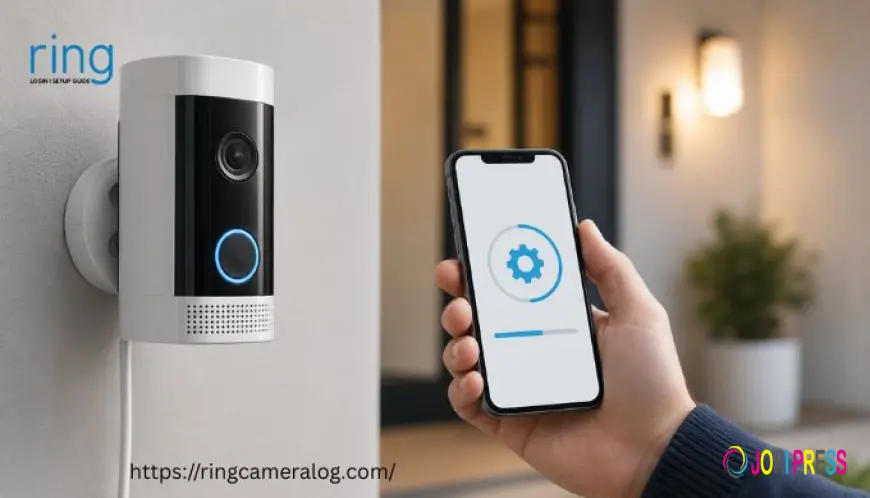
Setting up a Ring Camera helps you monitor your home through your smartphone. The process is simple when your device has power, a stable Wi-Fi connection, and the Ring app. Follow this guide for a smooth Ring camera setup.
Things You Need Before Setup
Before starting your Ring camera setup, prepare:
-
Ring Camera
-
Smartphone or tablet
-
Ring app
-
Stable Wi-Fi connection
-
Ring account
-
Camera battery or power adapter
-
Wi-Fi password
Step 1: Install the Ring App
Download the Ring app on your smartphone. Open the application after installation. Create a Ring account if you are a new user. Existing users can complete Ring Login with their account credentials.
Step 2: Power Your Ring Camera
Connect your Ring Camera to a power source. For battery models, insert a fully charged battery. Wait until the device enters setup mode.
Step 3: Start Ring Camera Setup
Open the Ring app. Tap the menu icon. Select Set Up a Device. Choose Security Cameras. Select your Ring Camera model.
Follow the instructions displayed inside the app.
Step 4: Connect Your Camera to Wi-Fi
Choose your home Wi-Fi network. Enter the correct Wi-Fi password. Keep your smartphone close to the camera during setup.
A weak Wi-Fi signal may cause connection problems. Place the camera within a suitable range of your router.
Step 5: Select the Camera Location
Choose a suitable location for your camera. Mount the device according to the manufacturer's instructions. Adjust the viewing angle for better coverage.
Check the live view after installation. Make sure the camera captures the desired area.
Step 6: Check for Ring Camera Firmware Update
After connecting your camera, the Ring app may install a Ring camera firmware update automatically. Keep the camera connected to power during the update.
Avoid disconnecting the device during installation. Firmware updates can improve performance. They may also fix known issues.
Common Ring Camera Setup Problems
If your camera does not connect:
-
Check your Wi-Fi password
-
Restart your router
-
Move the camera closer to the router
-
Restart the Ring app
-
Check camera battery level
-
Complete Ring Login again
-
Restart the camera
Conclusion
A proper Ring camera setup helps ensure reliable security monitoring. Install the Ring app. Complete Ring Login. Connect the camera to Wi-Fi. Check for a Ring camera firmware update. Test live view before finalizing the installation.
FAQs
1. Do I need a Ring account for setup?
Yes. A Ring account is required to configure the camera through the Ring app.
2. Why is my Ring Camera not connecting to Wi-Fi?
Check your Wi-Fi password. Move the camera closer to the router. Restart both devices before trying again.
3. How can I update Ring Camera firmware?
Firmware updates are generally handled through the Ring system. Keep your camera connected to power during an update.
4. Can I complete Ring Login from my phone?
Yes. You can use the Ring app to access your Ring account from a compatible smartphone.
What's Your Reaction?
 Like
0
Like
0
 Dislike
0
Dislike
0
 Love
0
Love
0
 Funny
0
Funny
0
 Angry
0
Angry
0
 Sad
0
Sad
0
 Wow
0
Wow
0