













































Softaken Merge PST Pro Review 2026: Real-World Test, Features, Performance, Pros & Cons?

Summary
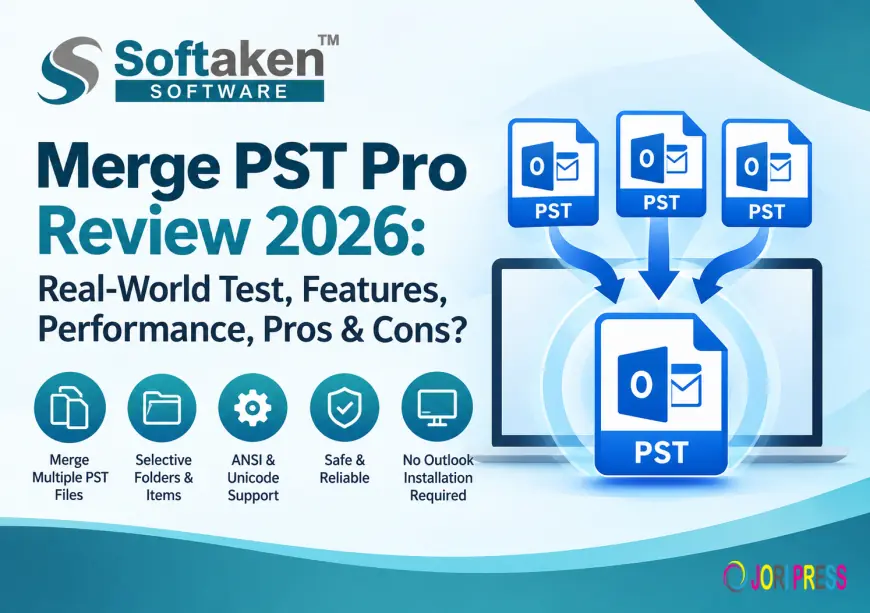
When emails, contacts, calendars, notes, and other mailbox data are scattered across different files, managing multiple Outlook PST files can be tricky. Softaken Merge PST Pro is designed to merge multiple Outlook PST files into one PST file. It does not need to install Microsoft Outlook. The tool supports ANSI and Unicode PST files and offers different merging options to satisfy different mailbox needs.
This review focuses on the practical workflow, like installation, adding PST files, selecting a merge method, creating the output PST and verifying the merged data.
Merge PST Pro is a software utility designed to merge PST files and recover deleted emails.
Merge PST Pro is a Windows based software to merge multiple Outlook PST files. It allows to merge full PST files, selected folders, individual mailbox items such as contacts, tasks, journals, notes, and calendars. The software can also combine Outlook archives into one PST file.
Important Note: You do not need to have Microsoft Outlook installed to do the merge.
Main Features
- Combine Several Outlook PST Files
- Combine PST archives into one PST
- ANSI and Unicode PST file support
- Five known merging possibilities
- Combine duplicate folders
- Combine selected folders
- Merge contacts or Inbox only
- Combine selected items in mailbox
- Show deleted items or hide deleted items
- Ignore empty folders
- Create new PST instead of editing source files
- Compatible with Windows 11, 10, 8.1, 8, 7 and more
- How to Install Softaken Merge PST Pro
Create a backup of the original PST files before the merge. Although the software creates a new output PST instead of altering the original data, it’s a good idea to keep a backup.
Step 1. Download the Software
Download the Windows setup file from the official Softaken Merge PST Pro product page.
Combine PST Pro
Step 2: Launch the Setup
Once you’ve downloaded the installer, open the setup file in your Downloads folder.
Follow the wizard for installation and let the application install on your Windows PC.
Step 3: Execute the Application
Open Softaken merge PST pro after installation.
The software has a simple interface from where you can add the PST files that you need to combine. The product documentation says it only takes a couple of steps to do the process.
Stepwise Procedure to Combine Multiple PST Files
Step 1: Adding PST Files
Open the software and select the add PST files option.
Navigate to the location where your Outlook PST files are stored and select the files you wish to. The software supports multiple PST files and both ANSI and Unicode formats .
You may have for example:
Personal.pst Work.pst Archive.pst OldEmails.pst
In the application you can add the required files for processing .
Step 2: Choose the Merge option
Select the appropriate method of merging after PST files are added.
Softaken mentions several options such as:
- Merge Similar Folders
- This option merges matching folders of different PST files. For instance, data from multiple PSTs can be consolidated into a common Inbox.
- New Folder Merge
- This method creates separate folders for the source PST data, which makes it easier to identify where the information came from.
- Only Merge Contacts
- If contacts are all you need, you can select the Contacts-only option instead of merging the entire mailbox.
- Only Merged Inbox
- This option limits the operation to data in the Inbox.
- Combine Folder You Want
Users have an option to merge a particular folder or the data of the wanted mailbox. The software also logs support for selected items such as contacts, tasks, journals, notes and calendars.
Step 3: Choose Deleted Items Handling
Merge PST Pro offers option to include or exclude deleted items while merging.
If the final PST does not require deleted items, the exclusion of such can assist in maintaining the resulting mailbox focused on active data.
Step 4: Ignore Empty Folders
The software can ignore empty folders when merging. This helps to avoid creating unnecessary empty folder structures in the resulting PST.
Step 5: Make the New PST
Select the destination location, and start the merge.
Explains that the software creates a new PST file without making any changes to existing folders or data in the source PST files.
Step 6: Verify the Outcome
Once done, find the new PST file.
If you open the result in Outlook, check important folders like:
- Inbox Sent Mail
- Contactos
- Time Table
- Notes
- Tasks Custom folders
Also, if the data is important, check some emails and attachments manually.
Does Merge PST Pro Need Outlook?
No. Microsoft Outlook installation is not required to merge PST files, as per the product FAQ. The software is a standalone application for Windows.
This might be handy if you just want to merge PST files and don't want to have to setup Outlook on the merging computer.
Support for ANSI and Unicode PSTs
Softaken Merge PST Pro can merge ANSI and Unicode PST files into a single Unicode PST. The software also supports the support of PST files of MB to GB size.
This makes the tool handy for users working with PST files of different Outlook versions and environments.
What are duplicate emails?
This is an important limitation to be aware of.
The current FAQ says the software does not automatically find and remove duplicate emails or contacts when merging. It can skip empty folders, and lets the user define whether to include deleted items or not, but automatic duplicate removal is not supported.
So users working with overlapping PST archives should check the merged mailbox for duplicates after the process.
Performance Evaluation
The actual processing time depends on the number of PST files, their size, the speed of the storage and the amount of data to be merged.
The software is based on a simple workflow: add PST files → choose a merge option → create a new PST. It also provides several ways to control what ends up in the output file.
Selective merging can be helpful for a large mailbox collection since users do not have to merge all folders or items.
Pros
- You can merge multiple PST files into one PST file.
- Supports ANSI and Unicode PST file formats.
- No Microsoft Outlook needed.
- Offers several merge options.
- Lets you merge selected folders and mailbox items.
- You can choose to include or exclude deleted items.
- You can skip empty folders.
- The merging procedure described does not alter any of the original PST data.
Cons
- The demo version is limited to 10 items,
Final Review
Merge PST Pro is a dedicated solution for users who are looking for merging multiple Outlook PST files. The program’s main advantage is the number of merging options: users can merge similar folders, create separate folders, merge selected folders or work with specific mailbox items like Contacts, Inbox, tasks, calendars, journals and notes.
The workflow is also straightforward too. Once the software is installed, users add their PST files, select the appropriate merge method, set preferences for deleted items and empty folders, and build a new PST.
But it is good to be aware that duplicate removal is not included and there is no claim to support encrypted or password protected PST files on the current product page.
The documented feature set of the software mostly consists of merging multiple PST files with an option to select which mailbox data to merge.
FAQ (Frequently Asked Questions)
1. Is it possible to combine several PST files into one?
Yes. Softaken Merge PST Pro is a tool for merging many Outlook PST files into one PST.
2. Do I need MS Outlook?
No. As the product page states, there is no need to have Outlook installed to merge PST files.
3. Can I just merge Contacts or Calendar data?
Yes. The software supports selected mailbox data like contacts, tasks, journals, notes and calendars.
4. Can I merge ANSI PST files and Unicode PST files?
Yes. Softaken claims that you can combine ANSI and Unicode PST files into Unicode PST.
More Info:- softaken.com/merge-pst-pro
What's Your Reaction?
 Like
0
Like
0
 Dislike
0
Dislike
0
 Love
0
Love
0
 Funny
0
Funny
0
 Angry
0
Angry
0
 Sad
0
Sad
0
 Wow
0
Wow
0