









































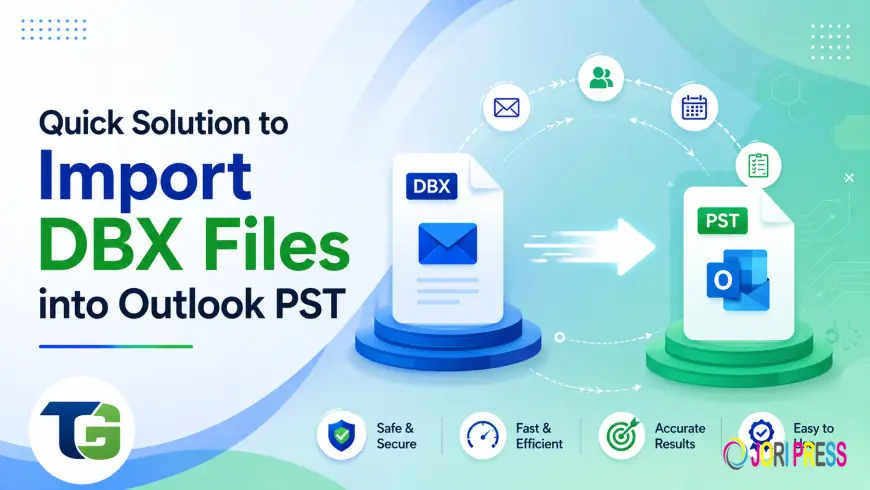
Quick Solution to Import DBX Files into Outlook PST
Looking for an easy trick to transfer DBX files to Outlook PST format? Learn how you can easily migrate all your email messages from OE to MS Outlook without losing any data.

Well, here's where you have a whole folder of DBX files on your desktop or perhaps in some backup folder you found but just no clue how to get them into Outlook. You've likely tried doing something about that, only to realise that nothing seems to be working. Changing filenames is not helping either; there doesn't seem to be any "import" feature in the program.
But here's the good news: transferring DBX files to Outlook PST is rather easy when you understand how it all works.
Why Outlook Can't Just Open a DBX File
This is not a bug. This is not a mistake you made. You just have Outlook working in one language, while DBX works in another.
DBX is the native file format of Outlook Express used for storing emails. Each Outlook Express folder (whether it's an inbox, a sent folder, drafts, or user-created folders) would be saved in a separate DBX file. Outlook stores all emails in a single PST file, which does not intersect with DBX files in any way and lacks built-in means to deal with DBX.
What can you do about it?
• Export from Outlook Express manually – if you happen to have your old machine running Outlook Express, but this solution is extremely time-consuming
• Use third-party tools for importing – the most effective approach
• Leverage free online conversion services – limited by size, not completely reliable, and risky for the safety of your personal emails
In most cases, the quickest and securest option is a desktop tool designed for converting Outlook DBX files to PST.
What Gets Carried Across During Import?
And this is precisely the question that everyone is privately asking themselves. What a correct import needs to save are the following:
• The actual content of the email – the subject line, body text, formatting, and even time stamps
• All data regarding the sender and the recipient – To field, From field, CC field and BCC field preserved
• All attachments – each and every file within each and every email message
• The hierarchical folder organization – if there were some additional folders within the inbox, then they must be correctly arranged in Outlook as well
• The read/unread status of each email message
Any failure in preserving one of these elements will prove that the import has not been performed successfully.
How to Import DBX Files into Outlook PST — Step by Step
Requires zero technical skill. Here’s how the procedure goes:
Step 1 – Install the software You should install it on your Windows PC. It is a stand-alone app and does not require any prior Outlook installation or other external add-ons.
Step 2 – Load your DBX file Start the programme and select where your DBX file can be located. It may have been stored for years in an old AppData directory or elsewhere on another drive – this program will take care of everything regardless.
Step 3 – View the mailbox content Just before the conversion process begins, you will have the opportunity to browse through all your mailbox items. This will allow you to confirm the content is as expected, and you have selected the correct file for import.
Step 4 – PST as Output Format Select PST as the output format to convert all files into MS Outlook. In case of migration to other clients like Thunderbird, Apple Mail, or Windows Live Mail, you may export messages in EML, EMLX, or MBOX formats as well.
Step 5 – Select Output Directory Choose whether to create a new PST file or to put converted emails in an existing PST file. The second variant is especially useful when importing a number of DBX files into one organised mailbox.
Step 6 – Convert Just press the button and wait for the process to be completed. The operation will run automatically without taking any additional resources and generate a clean PST file to open in MS Outlook directly.
What to Look For in a DBX to PST Tool
Not all tools available can be considered good ones. Some of the important factors which one must look for include the following:
• No data loss during conversion – emails need to be fully downloaded and not cut off
• Must work independently, without requiring installation of Microsoft Outlook
• Must be able to convert multiple DBX files
• Must provide users with full preview of their content before starting actual process of conversion
• Ability to save in multiple formats – while PST would be important, EML, EMLX, and MBOX would be an added advantage
Recommended Tool
The ToolsGround import DBX files into Outlook PST without data loss application has been developed for just such an intended use. The DBX to PST Converter offered by ToolsGround processes all files regardless of their size, retains all folders, attachments, and even metafields, and provides a step-by-step conversion experience through its user-friendly interface. Moreover, a free trial is offered — try it out with up to 10 email conversions for free!
Final Thoughts
Importing your DBX files to Outlook need not take a lot of time. It’s actually a quick job; you’ll have everything transferred into your Outlook account, and your emails will be in the exact same format that they originally came in, and you’ll be back to work.
If you’re looking to restore lost communication history, switch from one computer to another, or simply want to organise your accumulated collection of DBX files, the solution isn’t as hard as it might seem.
What's Your Reaction?
 Like
0
Like
0
 Dislike
0
Dislike
0
 Love
0
Love
0
 Funny
0
Funny
0
 Angry
0
Angry
0
 Sad
0
Sad
0
 Wow
0
Wow
0