






































Netgear Nighthawk WiFi Router Setup
Plug the thing in. Power on your router. Wait for the lights to chill out (usually takes a minute or two).

Next, grab an Ethernet cable. Connect one end to your modem and the other to the yellow Internet port on your Netgear.
If you’re skipping the modem part (say you’re on fiber and your ISP gave you a direct line), then yeah — just plug that line straight in.
Log into routerlogin.net
At this point, you can either set it up via your phone with the Nighthawk app (which honestly works fine), or go old-school with a computer.
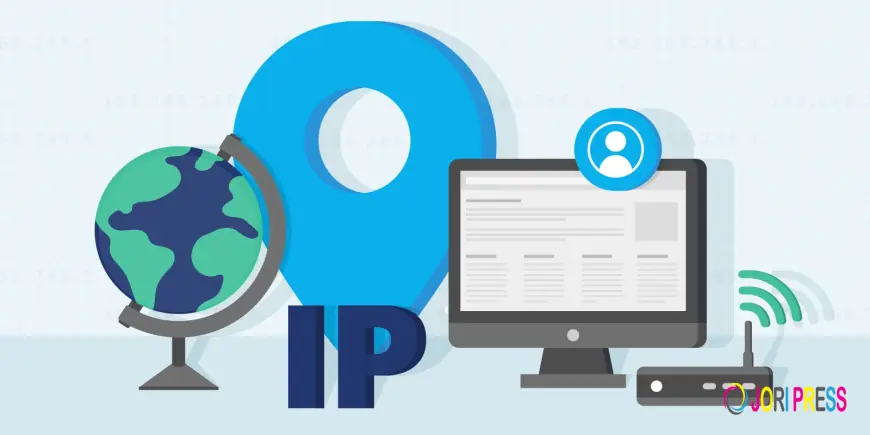
Hop onto the default WiFi; look for something like NETGEARxx. Password is on the sticker under the router. Once connected, open your browser and type 192.168.1.1 or routerlogin.net.
Boom — you’ll land on the setup page. It’ll probably ask for a username and password. Default ones:
Username: admin
Password: password
(That’s the default. You’ll change it later.)
From there, just follow the on-screen wizard. Let it auto-detect your Internet settings. Don’t panic if it takes a minute — Netgear routers have this little pause before it shows “Connected”.
Once it’s online, it’ll ask you to create your WiFi name and password. Make something you’ll actually remember — no need for 30 random symbols.
Reboot the Device
When that’s done, hit Save, and it’s going to reboot. Wait. Don’t mess with it. After the lights come back, you should see your new WiFi name in your network list.
Connect your devices, and you’re good. If the speed feels slow, log back into the admin page and make sure the firmware’s updated — there’s usually a big Update Router button somewhere on the dashboard.
What's Your Reaction?
 Like
0
Like
0
 Dislike
0
Dislike
0
 Love
0
Love
0
 Funny
0
Funny
0
 Angry
0
Angry
0
 Sad
0
Sad
0
 Wow
0
Wow
0