







































How to Fix NSF to MBOX Conversion Errors: The Complete Troubleshooting Guide

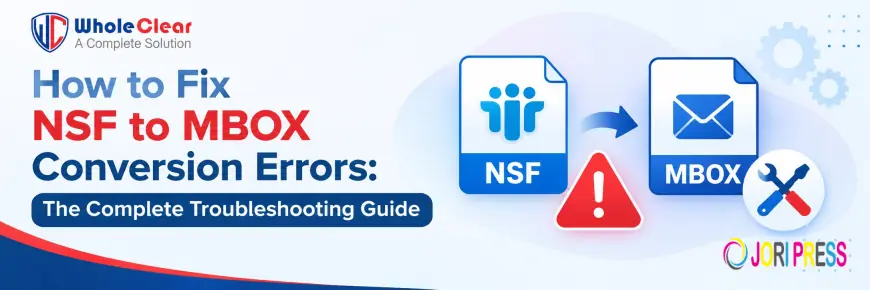
There could be times when you face certain unforeseen issues while trying to convert your email archives from IBM/HCL Lotus Notes to open-source email clients like Mozilla Thunderbird, Apple Mail, or Eudora. NSF to MBOX conversion can cause serious problems like loss of attachments, broken folder hierarchy, file size limitations, etc.
This troubleshooting guide provides step-by-step solutions to fix NSF to MBOX conversion errors with manual workarounds and an automated fix with WholeClear NSF to MBOX Converter.
File formats- NSF to MBOX
Migration errors can be due to differences in file formats. A quick and easy way to think about how your data is stored in common email formats:
-
NSF (Notes Storage Facility): This is a proprietary database format used only by IBM/HCL Lotus Notes. It keeps email, calendar, contacts, design elements, and ACL (Access Control Lists) in one dynamic database.
-
MBOX (Mailbox File): The MBOX file is a bulk storage container; It takes hundreds or thousands of emails (and attachments) and combines them into one long plain text file that can be read by Mac Mail, Thunderbird, Eudora, and Linux mail clients.
NSF is an enterprise database format for the Lotus Notes environment, and MBOX is a standard single-file format used by over 30 different desktop and web-based email clients. So, for NSF-to-MBOX migration, one has to extract email records from the Notes database schema and reassemble the email records into valid MBOX text streams.
Why Convert NSF File to MBOX
-
Move to Open-Source/Cross-Platform Email Clients: If you are migrating from Lotus Notes to a client such as Mozilla Thunderbird, Apple Mail or SeaMonkey, you will need to convert the file formats to be natively compatible.
-
Decentralise enterprise archives: Mailboxes stored as standard MBOX files can be distributed, archived, or searched more easily without the need for expensive Lotus Notes server infrastructure.
-
Legal Compliance & Auditing: Legal and discovery teams often require MBOX format to import into e-discovery platforms that support multiple operating systems.
-
Platform Migration: Moving from IBM Notes on Windows enterprise environments to macOS or Linux email environments requires converting legacy NSF archives to MBOX-compatible files.
Key Challenges in Moving NSF to MBOX
The most common failure modes of migration are format incompatibilities:
-
Incompatible Data Structures. - Need to convert Lotus Notes DB documents into standard RFC 822 MIME messages. If the NSF file contains a corrupted item or a custom schema field, the conversion process can be stopped.
-
Detachment of Attachments: The MBOX files are often broken or corrupted due to manual or bad conversion tools during the process of extraction.
-
Formatting Corruption - Non-parsing extraction may corrupt rich text formatting (Lotus Canonical Format), HTML layouts, inline images, and non-ASCII character sets (foreign language fonts).
-
Loss of header: The original timestamps (Sent/Received Date), read/unread status, and sender/recipient addressing fields are important metadata that are easily lost or overwritten in the extraction process.
Solution 1: The Manual Way (Free, High Risk)
This manual approach uses IBM Lotus Notes to directly export data to intermediate formats such as EML or CSV and then import into an MBOX-compatible client.
Conversion-
-
Open the IBM Lotus Notes database on your machine.
-
File > Preferences > User Preferences
-
Click Additional Options below Basic, and select Save Drag and Drop saves as EML file. Click OK
-
From the Lotus Notes folder, select the emails that you want to export.
-
Select the emails you want and drag them into a folder on your Windows desktop (this will save them as separate .EML files).
-
Open Mozilla Thunderbird (with ImportExportTools NG add-on installed)
-
Right-click your new folder and select ImportExportTools NG > Import all messages from a directory and browse to your EML folder.
-
Import into Thunderbird and export the folder as a single MBOX file with ImportExportTools NG.
Disadvantages of manual methods:
-
Very Time Consuming: Drag and drop emails and Importing/Exporting in phases can take hours and days for large databases.
-
Loss of Timestamp & Metadata: Drag & Drop frequently destroys internal Lotus Notes header fields and replaces dates with the current system export timestamp.
-
Flatten Folder Hierarchy: Drag and drop extraction will flatten the folder hierarchy and dump all the emails to a single folder.
-
High Freeze/Crash Rate: The operating systems and Lotus Notes client interfaces tend to freeze up when processing thousands of items at a time.
-
Lotus Notes Installation Required: The machine exporting the data must have a running, configured version of IBM/HCL Lotus Notes installed.
Solution 2: Automated Software Solution (WholeClear NSF to MBOX Converter)
The industry standard – the only tool that avoids manual errors, preserves complex folder structures, and guarantees 100% data retention.
WholeClear NSF to MBOX Converter is a powerful tool to extract Lotus Notes .nsf data and convert it into standard MBOX format that can be used with 30+ email applications. It supports archives without complicated manual export configuration.
Main Features:
-
Batch Conversion – Convert multiple NSF files or bulk mailboxes in one go.
-
Folder & Subfolder Structure Integrity: Maintains the existing folder and subfolder structure during migration.
-
Supports 30+ Target Clients: Creates generic MBOX files that are accessible in Thunderbird, Apple Mail, Eudora, SeaMonkey, Opera Mail, and more.
-
Full Metadata & Attachment Retention – Maintains MIME attachments, inline images, rich text formatting, and full To/From/CC/BCC/Date headers.
-
IBM/HCL Lotus Notes NSF File Compatibility: Compatible with all major versions of IBM/HCL Lotus Notes NSF files.
-
Preview Data Before Conversion: Preview mailbox structures and email items before export for maximum data accuracy.
WholeClear: A Step-by-Step Guide to Migrate NSF Files to MBOX
1. Download & Install: Required.
Download WholeClear NSF to MBOX Converter on your Windows PC.
2. Select Mode:
Run the software and select File mode to convert a single NSF file or Folder mode to migrate multiple mailboxes in a batch, as per your need.

3. Add NSF File(s)
Click Browse to select and upload your desired Lotus Notes .nsf file(s) in the software UI.

4. Look at the contents of the mailbox:
Preview Pane to check the Loaded Mailbox Hierarchy to verify Emails, Header & Attachments.
5. Choose destination path:
Click the Browse button and select the destination folder on your local or external hard drive where you want the converted MBOX files to be saved.

6. Conversion Run:
Click Convert Now to start the export process. If MBOX files are successfully created, you will get a confirmation window.

WholeClear NSF to MBOX Converter Advantages and Disadvantages:
Advantages
-
Easy to use: clean wizard interface, without any complex technical configuration.
-
Bulk Processing Power: Can process multi-gigabyte Lotus Notes archives that manual extraction techniques cannot.
-
Keeps Data Integrity: Inline graphics, doclinks, and rich text formatting are delivered cleanly and without corruption.
-
Extensive Client Compatibility: It generates MBOX files compatible with email clients on Windows, mac OS and Linux.
Disadvantages.
-
Windows-only UI: The application is designed to run only in the Windows OS environment.
-
Trial Limitations: The free trial version converts 25 items per folder (license required for unlimited conversion).
-
Not a File Repair Tool This utility is useful for migrating healthy NSF databases. If the NSF files are corrupted/damaged, you need to repair them before converting them.
User Review
We were migrating our organization from a legacy HCL Lotus Notes server to Mozilla Thunderbird on our Mac and Linux desktops. The manual export always lost our folder structures, and stripped our attachments. The WholeClear NSF to MBOX Converter automatically converted our complete 80 GB NSF database archive in a single batch without missing any file attachments and out of sent dates. “It was a massive time-saver for our IT team.
IT Systems Admin
Summary
Say goodbye to NSF to MBOX conversion issues like corrupted attachments, missing timestamps and hours of manual drag and drop troubleshooting. Manual workarounds in Lotus Notes and Thunderbird might work with a very small number of emails, but they are not scalable when you have to deal with enterprise level mailbox archives.
WholeClear NSF to MBOX Converter is the ultimate bridge between Lotus Notes database structures & popular open source mail clients. Automates parsing, retains the original folder structure and guarantees 100% data retention, makes a high risk migration a walk in the park.
Conversion Errors?
Stop human error from derailing your email migration. Download Free Trial Version of WholeClear NSF to MBOX Converter to Scan, Load and Preview your Lotus Notes Data before Conversion.
Frequently Asked Questions (FAQ’s)
1. Do I need to have Lotus Notes installed on the computer for conversion?
Yes, in general the IBM/HCL Lotus Notes installed environment or installation components should be present on the local machine for the converter to be able to use the core NSF database engine.
2. Do I lose attachments if I change?
No. All original attachments (PDFs, Office documents, images, ZIP files) are maintained, converted and properly embedded in the resulting MBOX file structure.
3. Is there any limitation in free trial version?
Free trial With the free trial you will be able to try all features and preview your mailbox data but will be able to save only 25 emails from each folder.
4. How to Import Converted MBOX File to Apple Mail on Mac OS?
Use a USB or network share to copy the generated MBOX file to your Mac. Launch Apple Mail and click on File > Import Mailboxes and choose Files in mbox format. Select your file and click Continue.
What's Your Reaction?
 Like
0
Like
0
 Dislike
0
Dislike
0
 Love
0
Love
0
 Funny
0
Funny
0
 Angry
0
Angry
0
 Sad
0
Sad
0
 Wow
0
Wow
0