








































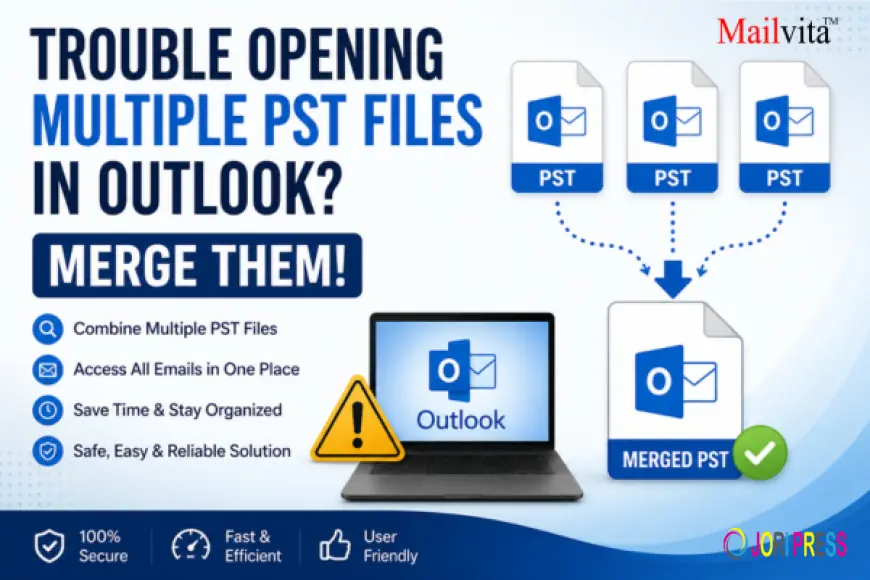
Trouble Opening Multiple PST Files in Outlook? Merge Them
Having trouble opening multiple PST files in Outlook? Learn manual methods and discover how the Mailvita Merge PST for Mac Tool helps combine PST files safely and efficiently.

Introduction
Having many PST files saved on your PC can make it hard to manage Outlook data. PST (Personal Storage Table) files include key mailbox data like emails, contacts, calendars, tasks, notes, and attachments. Over time users build up many PST files from migrating accounts, backups, archiving and moving data between systems.
Microsoft Outlook comes with the option to open several PST files but doing so often causes confusion and lowers productivity. Searching for critical emails in various data files can be difficult and time-consuming. One of the most efficient ways to simplify mailbox management is by merging numerous PST files into a single PST file if you are experiencing problems opening multiple PST files in Outlook.
In this manual, we will talk about the reasons why users are required to merge PST files, the manual approach, the limitations of the manual method, and professional solutions.
Why Use Multiple PST Files in Outlook?
There are several circumstances where users might want to merge Outlook PST files into one.
- Manage all mailbox items from a single PST file.
- It’s considerably easier to find emails when data isn’t strewn over numerous files.
- Try to open fewer PST files to increase Outlook responsiveness.
- A single PST file is much easier to handle and back up.
- By combining data, you get rid of the clutter and get a streamlined mailbox environment.
- Users can prevent missing essential emails stashed in distinct PST files.
Manual Method to Merge PST Files
Microsoft Outlook has an Import and Export tool, which allows users to import mailbox data from one PST file into another PST file.
Manually Merge PST Files
- Start Microsoft Outlook.
- Click the File tab.
- Choose Open & Export.
- Click Import/Export.
- Select Import from another program or file and click Next.
- Choose Outlook Data File (.pst).
- Browse and choose the PST file you want to import.
- Select how you want Outlook to deal with duplicates.
- Choose the target folder within your main PST file.
- Click Finish to start importing.
- Do the same for each PST file.
This method may work for a limited number of PST files but it gets more challenging to manage when you have more datasets.
Disadvantages of the Manual Method
While Outlook’s built-in approach is free, there are many limits that users should consider.
- Time-consuming.
- Duplicate Item Risk
- Needs Technical Knowledge
- Not Suitable for large-sized PST Files
- Errors committed by humans
- Outlook Dependence
- No batch processing
Due to these limitations, users generally look for an automated solution for safer and faster PST merging.
Ultimate Solution to Merge Multiple PST Files in Outlook
The Mailvita Merge PST for Mac Tool is a professional software that helps to combine several PST files into one PST file in a simple way. The app is specially designed for Mac users and makes the merging procedure easy without damaging the mailbox.
Whether you need to merge old PST files, integrate mailbox backups, or consolidate Outlook data from several accounts, this program provides an expedient solution.
With a basic interface functioning, the software is suited for both technical and non-technical users.
Main Features
- No limits are imposed on users when combining several PST files.
- The original mailbox folder structure is kept intact.
- Emails, attachments, contacts, calendars and metadata stay the same.
- The software is simple by design.
- Works efficiently to process large PST files without any hassle.
- The users can select only those PST files that they want to integrate.
- The software guarantees zero data loss during operation.
- Fast and precise PST Merge.
- The utility can be tested by users before purchasing the full version.
Software Working Steps
- Download and install the Mailvita Merge PST for Mac Tool on your Mac machine.
- Once installation is done open the software.
- Select the PST files and browse to merge.
- Check the inserted PST files before moving forward.
- Choose the location to save the combined PST file.
- Click on the Merge button to proceed with merging PST files.
Afterward, import the combined PST file to Outlook for easy access.
Why Users Should Pick This Tool
- It's a real time-saver.
- Avoids repetitive import operations.
- Avoids data loss on merge.
- Provides perfect mailbox correctness.
- Suitable for beginners and pros.
- Handles big PST files with ease.
- Provides rapid and reliable performance.
- No-hassle user experience.
- Simplifies the structure of the Outlook inbox.
- Safe way to organize your Outlook data.
The software makes Outlook management easier for both organizations and individual users, and protects sensitive email data.
Summary
Opening multiple PST files in Outlook can be a thing of difficulty which hampers productivity, organization, and general email management. Outlook offers a manual way to merge PST files but it’s a laborious, repetitive, and error-prone operation.
The Mailvita Merge PST for Mac Tool is a better choice. With its extensive capabilities, secure processing and user-friendly interface, users may merge numerous PST files into one without worrying about data loss or technological complexities.
Expert technique is the best choice if you are looking for an easy way to handle Outlook data and get rid of the confusion of several PST files. Clean your mailbox out today and get a cleaner, more organized Outlook.
What's Your Reaction?
 Like
0
Like
0
 Dislike
0
Dislike
0
 Love
0
Love
0
 Funny
0
Funny
0
 Angry
0
Angry
0
 Sad
0
Sad
0
 Wow
0
Wow
0