












































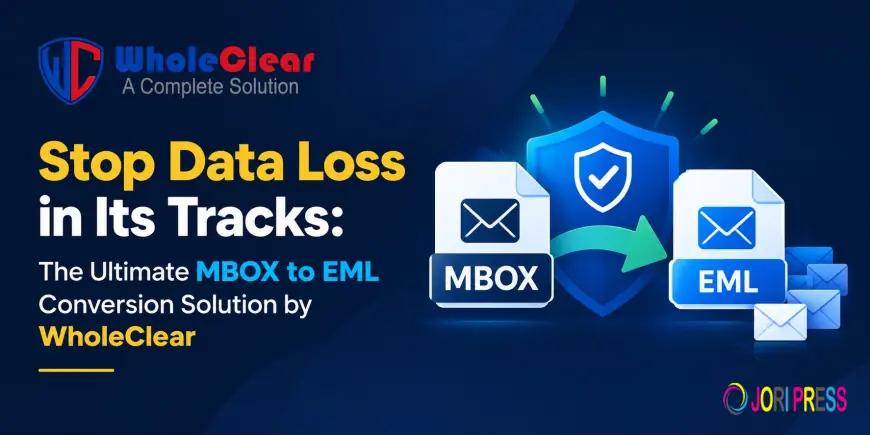
Stop Data Loss in Its Tracks The Ultimate MBOX to EML Conversion Solution by WholeClear

Introduction
A technical nightmare can quickly become the management of email data between platforms. The MBOX format is used by clients such as Mozilla Thunderbird, Apple Mail, and Eudora to store large quantities of email messages in a single text file. But raw MBOX files cause major operational bottlenecks when migrating to platforms that are more focused on individual messages, or when there is an immediate need to access individual emails.
Moving sensitive mail archives without the right approach can easily lead to broken formatting, lost attachments, or permanent data corruption. A good and lossless extraction strategy is important to ensure business continuity and long-term communication records.
Main Reason for Conversion
MBOX is fine as a bulk storage archive, but the structure has some problems for everyday access and platform migration:
-
Granular Access to Emails: MBOX files store hundreds/thousands of emails in one concatenated file. When using the EML conversion, each message is saved in its own file, and users can open, forward, or view individual emails without having to load up the whole database.
-
Platform Compatibility: EML is a highly versatile format that is natively supported by Outlook Express, Windows Live Mail, Mozilla Thunderbird, Apple Mail, and several web-based viewers.
-
Easier Sharing and Archiving: Far simpler to share a .eml file than to distribute an MBOX file in terms of legal, compliance, or collaboration requirements.
-
Corrupted File Recovery: If there's a single corrupted message in a monolithic MBOX file, it can render the entire mailbox inaccessible. Convert to EML, and you isolate each email and leave the rest of your archive safe.
What is Manual Conversion
The manual conversion is normally performed by means of an intermediate email client (e.g., Mozilla Thunderbird) and its built-in import/export plug-ins.
The usual manual workflow would be to import the MBOX file into an active desktop email client, synchronize the folders, select the messages you want, and then manually drag and drop or export those messages to a local folder as .eml files. The method is free up front, but not suited for moving a handful of emails, let alone processing the massive corporate mail archives.
Manual conversion: disadvantages
Manual conversion methods introduce several technical risks to your organization:
-
Data loss and formatting issues: In general, the positioning of images and complex formatting is broken by manually dragging the data or using older add-ons.
-
Loss of Meta Header Integrity: Important metadata (To, From, CC, BCC, date, time, and message headers) can be lost or overwritten while doing manual transfer.
-
Time-consuming and resource-hogging: Manually exporting files is a very time-consuming process that requires extensive manual labor and high system memory; clients often crash while exporting large files.
-
Manually Export Files from multi-folder MBOX File structures lack automation for filtering and batch processing; No Selective & Batch Processing option.
Solution: WholeClear MBOX to EML converter
Short Summary
The industry standard practice is to use dedicated automated utilities. Manual exports have limitations and risk of data loss. WholeClear utility helps to extract, Process and migrate MBOX archives to individual EML files in an accurate way, i.e., 100%. It's standalone, so you don't have to install and configure any native mail clients like Thunderbird, Outlook, etc for the conversion.
8 Key Features Explained
1. Support for complete batch migration
Loading a large e-mail archive one file at a time is not an efficient process. The software enables users to select and convert multiple MBOX files simultaneously with dedicated file and folder upload modes that drastically reduce processing time for enterprise IT teams.
2. Maintaining meta properties and header information
The software captures all of the important email attributes such as To, From, CC, BCC, subject lines, sent/received timestamps, and IP message headers for compliance and auditing.
3. Handling attachments
Attachments are often the most important part of email communication. The utility extracts all attachments (documents, PDFs, DOCX, ZIP files, images) and the message body, preserving original file names, extensions, and integrity, without any corruption.
4. Complete Self-Contained Functionality
Rather than depending on native export tools. Independent of the underlying client environments. You do not need to install Thunderbird, Windows Live Mail, or any other secondary application for easy conversion.
5. Preserve Folder Structure & Rich Text Format (RTF)
Above all, the messages should still be readable. The software preserves all HTML and RTF formatting, including custom fonts, hyperlinks, colors, and embedded images. Preserves the original folder structure.
6. Universal MBOX Support
MBOX files vary slightly depending on the email client. It supports MBOX files from any source client like Mozilla Thunderbird, Apple Mail, Eudora, Netscape, PocoMail, SeaMonkey, and Opera Mail.
7. Preview Feature
The Software provides a preview of loaded MBOX files and email components before proceeding to export. Before conversion, you can preview the folder content & email information.
8. Preferences for Custom Destination Path
The user can send the converted data to any location he/she wants. This tool helps you to save the output EML files to any local drive, external hard drive, or network mapped location as per your choice. The files are easy to order.
Conversion procedure:
6 Conversion Process Steps
1. Download & Open: Download WholeClear software and open in your Windows computer.
2. Select MBOX Files: Select the File or Folder mode to upload single or multiple MBOX files.

3. Data Preview: The loaded MBOX content and folder trees are shown in the preview pane.

4. Select EML as Export Format: Choose .eml as the export format you want to use for extraction.

5. Choose destination path: Select browse for choosing or create a local destination folder where the converted EML files will be saved.

6. Start Conversion: Click Convert Now to begin the automatic conversion.

Advantages and Disadvantages of the tool
Advantages
-
Zero Data Loss Guarantee: High-precision scanning algorithm makes sure there won't be any loss of email attributes, attachments, or metadata during conversion.
-
Fast work: Optimized performance processes can process multi-gigabyte MBOX files in no time without hanging or losing connection.
-
User Interface: Intuitive and Simple, so that it does not require any advanced training to operate and is ideal for non-technical users.
-
Works with All Windows OS: Fully compatible with all Windows platforms, including Windows 11, 10, 8.1, 8, 7, and older versions.
Disadvantages
-
Demo Version Restrictions: The free trial version limits the number of emails that can be extracted from a folder, and you need to purchase a full license for unlimited batch extraction.
-
No Mobile Direct Support: This software is for desktop environments only, and can not be run directly from mobile operating systems (iOS/Android).
Customer Reference
The challenge: to migrate 80+ GB of archived Thunderbird mailboxes to a new platform that required standard EML files. Manually, it failed and lost attachments and garbled headers. This tool saved our IT team dozens of hours of work. The whole thing went off without a hitch, with no metadata lost.
Senior IT Operations Manager
Overview
Converting MBOX files email by email is fraught with hidden dangers like stripped email headers, broken attachments, and wasted hours. The most intelligent thing to do is to use automated software for the safe storage, saving, and accessibility of your communication records on various platforms.
Say goodbye to old manual workarounds and never miss a business email that matters. Try the free trial version to test your files or purchase the full license for unlimited safe MBOX to EML conversions instantly!
Frequently Asked Questions (FAQs)
1. Do I have to install Mozilla Thunderbird on my PC to convert MBOX to EML?
No. The conversion tool is a completely stand-alone application. You don’t need to have Thunderbird or any other mail client installed to complete the conversion process.
2. Will there be attachments from my email in the messages?
Yes. All types and sizes of attachments are converted and stored with the related email messages in their original form.
3. What is the maximum size of MBOX files that I can upload?
No. The software is designed to handle huge MBOX files without any manual file size limitations or extraction speed limits.
4. Does the software have a trial version?
Yes! You can download a free trial version to convert a limited sample of emails from each MBOX folder before buying to try the features of the software.
What's Your Reaction?
 Like
0
Like
0
 Dislike
0
Dislike
0
 Love
0
Love
0
 Funny
0
Funny
0
 Angry
0
Angry
0
 Sad
0
Sad
0
 Wow
0
Wow
0