

































How to Use Veo 2 to Create Short AI Videos
Ready to master VEO 2 from GalaxyonKnowledge? Check out our simple guide for helpful tips and tricks to enhance your learning experience!
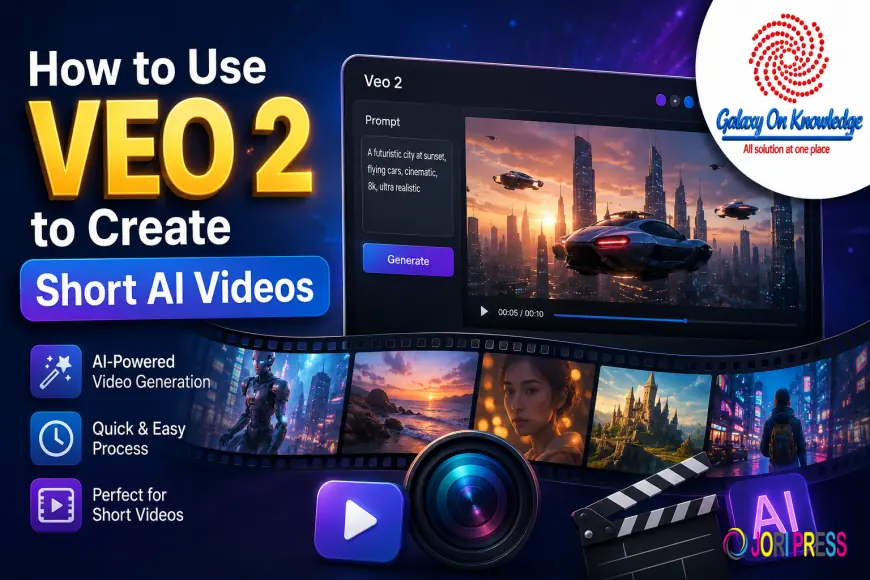
How to Use Veo 2 to Create Short AI Videos
Google Veo 2 can turn a written scene or a still image into a short video clip. If you're learning How to use Veo 2, start small: one subject, one action, and one clear setting usually beat a crowded movie-length idea.
Access, price, resolution, length, and daily limits can differ by account, country, and Google plan. Veo fits into a larger group of top free Google AI tools, although video generation may not be free for every user.
What Can Veo 2 Do for Your Video Projects?
So, what can Veo 2 do? It generates brief text-to-video scenes and can animate a reference image. You can describe camera motion, lighting, mood, subject movement, and visual style in plain English.
For example, it can produce a product clip with a slow orbiting camera, a foggy mountain scene at dawn, a moving background for a vertical social post, or a quick storyboard test before a real shoot. It handles visual ideas best when the clip has one obvious focal point.
Still, inspect every output. Faces, hands, text, and object movement can drift or change between frames. Veo 3 is a newer model, but is Veo 3 free? That depends on the plan, trial offer, region, and account eligibility. Google changes access by product, much as its model choices differ across Gemini options. This guide to Gemini model differences can help when Google's names and tiers become confusing.
Choose Between Text Prompts and Image Prompts
Start with text when you want a fresh scene. Describe the subject, setting, action, and viewpoint with enough detail to guide the camera.
Use an image prompt when the product, character, room, or composition already exists. Only upload images you own or have permission to use. For example, upload a still photo of a sneaker and ask for "a slow, gentle rotation on a pale studio surface, soft window light."
Know the Current Video Limits Before You Start
Veo 2 often creates clips around 5 to 8 seconds long. Depending on the product surface, available output may be 720p at 24 frames per second, with 16:9 or 9:16 framing.
Limits aren't universal. If you're asking, "How many videos can I generate with Veo 2 for free?" the reliable answer is the quota displayed in your account. Some access paths offer a trial or limited use, while others require credits or a subscription. Therefore, "Can Veo make videos for free?" has no permanent yes-or-no answer.
A short clip with one clear action is more likely to look coherent than a prompt that asks for several scenes, characters, and camera changes.
How to Use Veo 2 in Google AI Studio, Step by Step
If Veo is available to your account, the workflow is straightforward:
- Sign in to Google and open Google AI Studio. If the platform is unfamiliar, read what Google AI Studio is.
- Look for Video Gen, Generate Media, or a similar video option, then select Veo if it appears.
- Write a focused prompt. Add a reference image when you need to preserve a visual starting point.
- Choose landscape or portrait if the menu offers aspect-ratio controls.
- Add a negative prompt for elements you don't want, then generate the clip.
- Review the result, revise the prompt, and download the MP4 if the option appears.
Menus can change, and some users may find Veo through Gemini, Google Vids, Vertex AI, or another Google product instead. The same basic process still applies: describe the shot, generate a draft, then refine it.
Write a Veo 2 Prompt That Controls Action and Style
Strong prompts follow a simple order: subject, action, location, camera movement, style, lighting, framing, duration, and aspect ratio.
Try this:
"A golden retriever runs through a sunny park in early morning, slow handheld camera following at dog height, warm natural light, realistic detail, wide 16:9 shot, 8 seconds."
Specific verbs such as "runs," "turns," "pours," or "drifts" give the model movement to depict. Camera instructions such as "slow push-in" or "overhead shot" also shape the result.
Use negative instructions to reduce unwanted text, logos, extra fingers, distorted faces, duplicate objects, or shaky movement. Keep them short and practical.
Review, Refine, and Download the Best Result
Treat the first generation as a draft. Change one or two details at a time, rather than rewriting the whole prompt after every attempt.
Check hands, faces, background objects, motion, text, and continuity. Save the exact prompt behind a good result. For planned campaigns, Gemini can also help organize a shot list or calendar in Google Sheets before you create each clip.
Is Google Veo 2 Free Now, and Where Else Can You Use It?
Is Google Veo 2 free now? Some accounts may see limited access through Google AI Studio, Gemini, or a trial. Others may need Google AI Pro, another subscription, or paid cloud credits.
If you want to know how to get Veo 2 for free, check the plan page and your account's current quotas before generating. The same advice applies to "Can I try Veo 3 for free?" Free access can be promotional, regional, or capped.
How much does Google Veo cost? On Vertex AI, Veo 2 pricing has been listed at $0.50 per generated second, though consumer plans package access differently. Check the current product page because pricing and allocations can change.
Can you use Veo 2 on your phone? It depends on what the Gemini app or mobile browser offers your account. A desktop browser usually gives you more prompt and download controls. Likewise, How to use Veo 2 in YouTube often means creating the MP4 elsewhere, then uploading it to YouTube.
Use Veo 2 Safely and Improve Your Final Video
Don't upload private images, copyrighted materials, or recognizable people without permission. Avoid realistic clips that could mislead viewers, and label AI-generated video where context calls for it.
Before publishing, inspect brands, locations, faces, and visible details. If you are building an app, Google Cloud AI Vision can analyze images, while Firebase can help store and organize media files.
When Veo 2 Is Not the Right Tool
Veo 2 has limits. It may struggle with exact text, consistent characters, complex actions, and long narratives. Generation caps and uncertain access can also interrupt a project.
Use it for concept clips, social visuals, and creative experiments. For a precise commercial sequence, a camera crew or traditional editor may be the better choice. For research-based ideas, NotebookLM's source-grounded research tools can organize your materials, but they don't generate Veo videos.
Final Thoughts
To use Veo 2 well, open an eligible Google product, describe one focused scene, add an image only when it helps, and refine the strongest draft. Check the clip closely before you download or edit it.
Free access and quotas can shift without much notice. Begin with a simple 5 to 8 second idea, then build your larger video project one clean shot at a time.
What's Your Reaction?
 Like
0
Like
0
 Dislike
0
Dislike
0
 Love
0
Love
0
 Funny
0
Funny
0
 Angry
0
Angry
0
 Sad
0
Sad
0
 Wow
0
Wow
0