









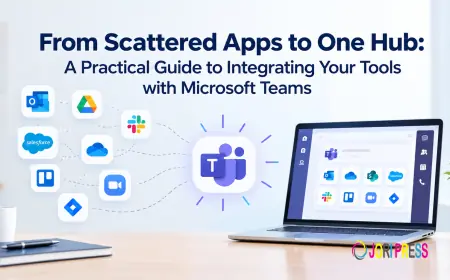































From Scattered Apps to One Hub: A Practical Guide to Integrating Your Tools with Microsoft Teams


The Problem With Scattered Apps
Most businesses did not plan to end up with fifteen different tools. It just happened. Someone added a softphone for remote staff. Another team signed up for a project tracker. Accounting kept the old fax line running. A few years later, employees spend their days hopping between windows, logins, and notifications, and nobody has a full picture of what is going on.
Scattered apps create real problems. Information gets duplicated or lost. New hires take longer to get up to speed. IT juggles too many vendors and too many security settings. And customers notice when your team cannot find an answer quickly.
The good news is that you probably already own the solution. Microsoft Teams can act as the central hub where calls, chats, meetings, files, and business apps all come together. A thoughtful Microsoft Teams Integration turns that potential into reality. This guide walks you through seven practical steps to get there, without disrupting your business along the way.
Step 1: Audit Every Tool Your Team Uses
You cannot consolidate what you cannot see. Start by listing every application your teams rely on, grouped by what it does: calling, messaging, meetings, fax, file storage, CRM, project management, support tickets, and approvals.
For each tool, note who uses it, how often, what it costs, and whether it already offers a Teams app or connector. Then ask employees a simple question: which switches between apps frustrate you the most? Their answers will point straight to your highest value integrations.
You will likely find some surprises, such as two departments paying for different video tools, or a fax service nobody in IT knew about.
Step 2: Plan a Unified Hub, Not a Pile of Add Ons
The biggest mistake companies make is connecting tools one at a time with no overall design. That simply moves the clutter into Teams. Instead, decide what your hub should look like before you build it.
This is where Unified Communications Solutions make a real difference. Rather than stitching together separate vendors for voice, fax, video, and messaging, a unified platform delivers them as one connected service that plugs into Teams. You get one provider to call, one bill to manage, and one consistent experience for employees.
As you plan, decide which tools to keep, which to replace, and which to retire. Set a simple channel structure, such as one team per department and channels for major projects, so integrations have a clear home.
Step 3: Connect Your Phone System First
If you only do one integration this quarter, make it the phone. Calling touches nearly every employee, so it delivers the fastest and most visible results.
Bringing your Business Phone Systems into Teams means your existing business numbers ring directly in the Teams app on desktops, laptops, and mobile phones. Employees can call customers, transfer calls to colleagues, check voicemail, and see call history from the same window they use for chat. Presence indicators show who is available, so callers stop bouncing between voicemail boxes.
A practical rollout usually looks like this:
- Confirm your Microsoft 365 licenses support Teams calling.
- Choose a provider that connects to Teams through Direct Routing or Operator Connect.
- Port your existing numbers so customers see no change.
- Set up auto attendants, call queues, and hunt groups for main lines.
- Pilot with one department before moving everyone over.
Local presence still matters for many businesses. Companies serving customers across the state often choose VoIP Phone Services Florida to keep familiar local area codes and reliable call quality, while still managing every call from inside Teams.
Step 4: Bring Fax and Meetings Into the Hub
Fax is easy to forget, but in healthcare, legal, finance, and real estate it remains part of daily work. Leaving it on a standalone machine keeps one more process outside your hub. Fax to Email Communication Software converts incoming faxes into digital documents that arrive in an inbox. From there, staff can share them into the right Teams channel, assign follow up, and store them alongside related files. Sending a fax becomes as simple as sending an email.
Meetings deserve the same attention. Many companies use Teams for video but still rely on other tools for whiteboards, file sharing, or webinars. Solid Web & Video Collaboration keeps all of it in one place: screen sharing, live document editing, recordings, transcripts, and breakout rooms. If you have conference rooms, consider certified Teams Rooms devices so anyone can start a meeting with one tap.
Step 5: Add Business Apps and Automation
Once communication is centralized, connect the apps where the rest of your work lives. Popular choices include:
- CRM tools such as Salesforce, HubSpot, or Dynamics 365, so sales teams can view and update records from a chat.
- Project tools such as Planner, Asana, Trello, or Jira, pinned as tabs in project channels.
- Help desk tools such as ServiceNow or Zendesk, so tickets can be raised and resolved inside Teams.
- Power Automate and Approvals, to route requests and automate routine tasks without email chains.
Add only the apps your audit showed people actually need. Fewer, well chosen integrations beat a cluttered sidebar every time.
Step 6: Secure the Hub
Centralizing your tools makes security easier to manage, but only if you set it up properly. With everything flowing through Teams, a single weak account can expose calls, files, and customer data at once.
Voice deserves special care, because many companies protect email and documents while overlooking their phone traffic. Following VoIP Security Best Practices helps you avoid eavesdropping, account takeover, and toll fraud. Build these habits into your rollout:
- Require multifactor authentication for every user.
- Encrypt calls and messages in transit.
- Restrict international and premium rate dialing to the people who need it.
- Monitor call logs and sign in activity for unusual patterns.
- Use app permission policies so only IT approved third party apps can be installed.
- Set guest and external access rules before inviting partners into shared channels.
- Keep apps, devices, and firmware updated on a regular schedule.
Step 7: Train Your Team and Measure the Results
Even the best integration fails if people keep using their old habits. Plan short, practical training sessions focused on daily tasks: making a call from Teams, finding a faxed document, starting a meeting from a chat, or approving a request. Record the sessions and pin them in a help channel so new hires can watch later. Appoint a few "Teams champions" in each department to answer quick questions.
Then measure what changed. Useful numbers to track include the number of apps retired, monthly software spend, average time to answer customer calls, meeting counts, and ticket resolution times. Share the wins with your team. Visible progress keeps adoption strong.
For a deeper look at setup details, permissions, and rollout planning, read our Guide to Microsoft Teams Integration.
From Scattered to Streamlined
Moving from scattered apps to one hub is not about adding more technology. It is about removing friction so your team can focus on customers and meaningful work. Audit what you have, plan a unified design, start with the phone, bring in fax, meetings, and business apps, lock down security, and train your people well.
If you would like expert help along the way, OmniCaaS works with businesses to plan, connect, and secure Microsoft Teams as a true communication hub. Your tools are already there. Now it is time to bring them together.
What's Your Reaction?
 Like
0
Like
0
 Dislike
0
Dislike
0
 Love
0
Love
0
 Funny
0
Funny
0
 Angry
0
Angry
0
 Sad
0
Sad
0
 Wow
0
Wow
0