






































Complete Troubleshooting Guide to Fix OLM to MSG Conversion Failures with Softaken

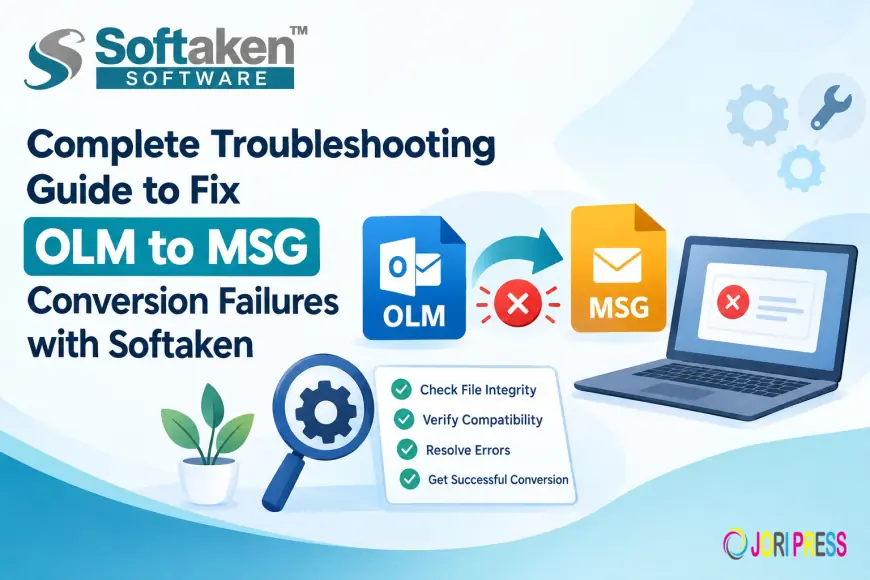
Moving email archives from Mac Outlook to standard Windows email should be a quick and easy background process. If you’re dealing with frozen export streams, lost attachments, or surprising failure errors when you convert OLM (Mac Outlook) files to MSG (Outlook Message) format, you’re not alone.
Cross-platform migration problems make data migration between macOS and Windows Outlook environments a nightmare. In this guide, we will show you the causes of OLM to MSG conversion errors and their solutions. We will also talk about how specialized utilities such as Softaken OLM to MSG Converter can help you overcome these technical hurdles.
Know the Formats: OLM vs MSG
If you know how these two different types of file structures store data, you can handle conversion problems more easily:
-
OLM (.olm): A complicated database archive created by Outlook for Mac. It has everything you need in one package: full profile (emails, contacts, calendars, tasks, and folder hierarchies).
-
MSG (.msg): The single message file format, used by Microsoft Outlook on the Windows platform. Each.msg file contains the entire e-mail message, including the header, body text, formatting, and any attachments.
The process of converting MSG to OLM is pretty much a process of unbundling the individual items from a Mac-oriented archive, and re-encoding the metadata and converting each message into a separate, Windows-compatible .msg file.
Common reasons for OLM to MSG conversion failure
Technical issues may arise while converting Mac Outlook archives that can freeze or fail the process:
-
Out of system RAM: The conversion utility isn’t dynamic in handling memory, and large .olm files with thousands of messages or heavy attachments can eat up the live system RAM.
-
Corrupted/Orphaned File Headers: When files are transferred between networks or operating systems, incomplete/corrupted file structures can be created that cannot be read by generic scripts.
-
Complex MIME & Attachment Formatting: Mac Outlook can generate non-standard inline images, nested attachments, or multi-part MIME boundaries that can result in parsing errors.
-
Mac/Windows Compatibility Issues: Manual conversion workarounds at the system level may be problematic because of encoding differences between macOS and Windows.
Manual Workarounds (and Their Shortcomings)
The standard manual way is to drag and drop emails from Mac Outlook as .eml or .mbox files. Copy them to a Windows PC and re-import into Windows Outlook.
Why Manual Techniques Often Fail:
-
Client configuration required: Outlook for Mac and Outlook for Windows must be completely installed.
-
Metadata Loss: Manual export may alter header information, delete original timestamps, and remove inline images.
-
Time-consuming & Not Scalable: Exporting large mailboxes manually can cause buffer overflow and app crashes.
Softaken OLM to MSG Converter Auto Repair
Otherwise, if manual transfer stops or fails, you can use the dedicated tool Softaken OLM to MSG Converter to avoid client dependencies and process data directly.
4 Easy Steps to the Conversion Process
1. Select OLM Files: Launch the program and click on Browse to locate your .olm files or a folder containing multiple archives.

2. Message Preview: View email details and attachments in the built-in preview pane and loaded folder tree.

3. Choose Output Destination: Now select MSG as the output file format and choose the location where you want to save the files on your local hard drive or network location.
4. Click Convert Now: Click the Convert Now button to start migration and create your native .msg files.

Key Features & Benefits
Characteristics
-
Direct File Parsing: OLM files are converted to MSG without installing Mac Outlook or Windows Outlook.
-
Batch Processing: Convert large databases of OLMs to individual MSG files in bulk.
-
Selective Filtering: Convert and preview only the folders/items you need for your migration.
-
Keep Folder Structure: Keeps the folder structure intact during the export.
Advantages:
-
Full Data Integrity: Preserves original email headers (To, From, CC, BCC, Date). Preserves HTML format & attachments.
-
High Scalability: It can deal with large OLM files without any system lags and memory spikes.
-
High Compatibility: Imports OLM files from all the latest versions of Outlook for Mac & Exports MSG files for all editions of Windows Outlook.
Conclusion
The main reason for the failure of OLM to MSG migration is due to issues such as memory overload, file encoding differences, or manual drag-and-drop transfer. You can use manual steps for small batches, but for large-scale (or mission-critical) email archives, you’ll want an automated tool. Softaken OLM to MSG Converter is the best solution to convert without a client requirement. It keeps message integrity without hassle.
Frequently asked questions
Q1: Why does my OLM to MSG conversion hang halfway through?
Freezes are usually caused when low-level scripts eat up system RAM on large attachments or weird file headers. Dedicated software sets aside memory to avoid these stalls.
Q2. Does the Softaken converter require Microsoft Outlook to be installed?
No, Softaken OLM to MSG Converter is a standalone utility and creates native .msg files without installing Outlook.
Q3: Will my email attachments and folders be lost?
Yes, the software preserves the entire folder hierarchy and can extract all attachments and the attached message body.
Q4: How to convert multiple OLM files?
Yeah. If you have a folder with many OLM files, then you can load the folder and convert all of them to MSG format with the batch/folder selection options provided by the tool.
What's Your Reaction?
 Like
0
Like
0
 Dislike
0
Dislike
0
 Love
0
Love
0
 Funny
0
Funny
0
 Angry
0
Angry
0
 Sad
0
Sad
0
 Wow
0
Wow
0