












































ARK Dedicated Server Ports: Configure UFW and Cloud Firewalls on Linux VPS
Learn how to configure ARK dedicated server ports on a Linux VPS using UFW and cloud firewall rules. Fix connection errors and secure RCON access.
An ARK: Survival Evolved dedicated server may run correctly but still show "Server Not Responding" when players try to connect. One possible reason is incorrect firewall configuration.
ARK uses different network ports for gameplay, server discovery, and remote administration. If the required UDP ports are blocked, players may experience connection timeouts or have trouble finding the server.
This guide explains how to configure ARK dedicated server ports using UFW, manage cloud firewall rules, and troubleshoot common connection problems on a Linux VPS.
1. Understanding ARK Dedicated Server Ports
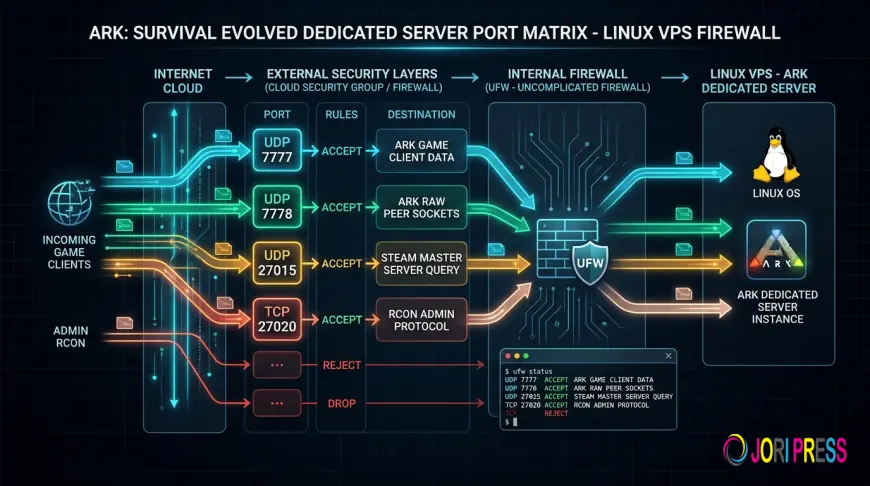
ARK: Survival Evolved commonly uses three UDP ports and an optional TCP management port.
- UDP 7777: Handles primary game traffic between players and the server.
- UDP 7778: Used for additional game communication, typically one port above the configured game port.
- UDP 27015: Handles Steam server queries and discovery.
- TCP 27020: Commonly used for optional RCON remote administration.
The exact ports depend on your server startup configuration. RCON must be enabled separately if you want to use remote administration tools.
2. Configure UFW Firewall Rules on Ubuntu
Ubuntu provides UFW (Uncomplicated Firewall) to manage incoming and outgoing network connections.
First, check the firewall status:
sudo ufw status verbose
Set the default firewall policies:
sudo ufw default deny incoming
sudo ufw default allow outgoing
Before enabling UFW, allow your SSH management port to avoid losing server access:
sudo ufw allow 22/tcp
Replace port 22 if your server uses a custom SSH port.
Next, allow the required ARK ports:
sudo ufw allow 7777/udp
sudo ufw allow 7778/udp
sudo ufw allow 27015/udp
Enable the firewall and verify the rules:
sudo ufw enable
sudo ufw status numbered
These commands allow incoming traffic on the standard ARK gameplay and query ports.
3. Secure the RCON Administration Port
RCON allows administrators to manage an ARK server remotely. Since it provides access to administrative commands, avoid exposing it to everyone on the internet.
If RCON is enabled on TCP port 27020, restrict access to your administrator's IP address:
sudo ufw allow from YOUR_ADMIN_IP to any port 27020 proto tcp
Replace YOUR_ADMIN_IP with your actual public IP address.
For administrators with changing IP addresses, a VPN or secure management tunnel may be more suitable.
4. Configure Cloud Security Groups
Some VPS providers use an additional firewall outside the operating system.
Even if UFW allows ARK traffic, connections may fail when the provider's cloud firewall blocks the same ports.
Open your hosting control panel and configure inbound access for UDP 7777, 7778, and 27015.
If RCON is enabled, allow TCP 27020 only from trusted administrator IP addresses. Keep your SSH management port accessible as well.
Both the Linux firewall and any provider-level firewall must permit the required traffic.
5. Fix ARK Server Not Responding Errors
If your ARK server is running but cannot be found in Steam Favorites, start by checking the Steam query port.
Run:
sudo ufw status
Confirm that UDP 27015 is allowed.
Check the active network sockets:
sudo ss -lunp
Verify that the game server is listening on its configured ports.
If the server is still unavailable, check the hosting provider's firewall, public IP address, and game server logs.
A missing server listing does not always mean a firewall problem. Server registration delays, incorrect launch parameters, or application failures can produce similar symptoms.
6. Configure Ports for Multiple ARK Maps
Hosting several ARK maps on one VPS requires separate game server instances.
Each instance needs its own game port, adjacent communication port, and Steam query port.
For example:
- The Island: UDP 7777, 7778, and 27015.
- Scorched Earth: UDP 7779, 7780, and 27016.
- Aberration: UDP 7781, 7782, and 27017.
These are example allocations. Configure each server instance to match its assigned ports.
For this three-map configuration, allow the required UDP ranges:
sudo ufw allow 7777:7782/udp
sudo ufw allow 27015:27017/udp
Avoid assigning overlapping ports to different server instances.
7. Troubleshoot ARK Network Connections
· Server Not Responding: Check UDP 27015, server query settings, and cloud firewall rules.
· Players Cannot Join: Verify UDP 7777 and 7778, the server's public IP, and whether the game process is running.
· RCON Connection Refused: Confirm that RCON is enabled, its configured TCP port is listening, and the administrator's IP is allowed.
· Multiple Servers Fail to Start: Check for port conflicts between game instances.
· High Ping or Packet Loss: Monitor network usage, server CPU load, and routing conditions. Firewall changes alone will not fix resource shortages or network congestion.
For additional diagnostics, use:
sudo tcpdump -n -i any 'udp port 7777 or udp port 27015'
This command displays matching network packets reaching the VPS. It can help identify whether traffic arrives at the server, although further checks may be needed to determine why connections fail.
Conclusion
Configuring ARK dedicated server ports correctly is essential for multiplayer connectivity and server discovery. Allow UDP 7777, 7778, and 27015 through UFW and any cloud firewall, while keeping RCON access restricted.
After applying the rules, verify the listening ports and test connections from an external network. Regular monitoring and proper port allocation help keep your ARK server accessible as your gaming community grows.
What's Your Reaction?
 Like
0
Like
0
 Dislike
0
Dislike
0
 Love
0
Love
0
 Funny
0
Funny
0
 Angry
0
Angry
0
 Sad
0
Sad
0
 Wow
0
Wow
0