










































How to Extract Attachments from Multiple PST Files in Bulk.
Understand how to extract attachments from multiple PST files in bulk without losing mailbox data. MailsDaddy Outlook Attachments Extractor helps to reduce the PST file size by saving attachments separately.
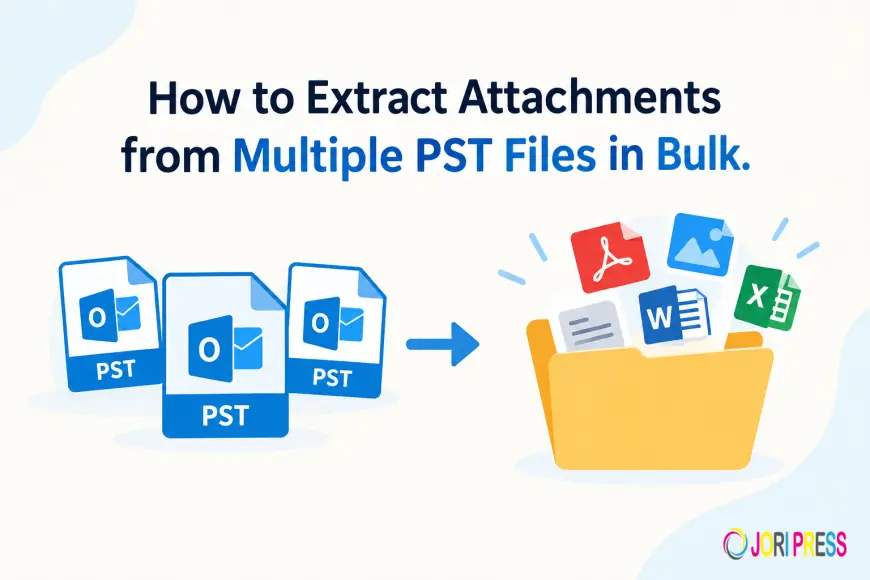
The Microsoft Outlook application saves emails, contacts, calendars, tasks, and attachments in a PST file. The PST files may contain many documents, images, PDFs, spreadsheets, and other attachments over time. In such a case, users need to extract the attachments from many PST files, then it becomes difficult to do so by manually processing each file. However, there are manual as well as automated ways for the outlook attachment extraction.
In this blog post, we will describe the process of extracting attachments from many PST files and in which situations we need this extraction.
Why do we need to Extract attachments from Many PST Files?
There are several reasons for saving Outlook attachments from multiple PST files. Here are a few of them:
-
Download the attachments into the local system and create the extra space in the mailbox size.
-
It helps us to create back up of important email attachments by saving them to a secure location into the system.
-
Users shift from old system to new system then they export attachments separately.
-
To organize important records like reports, invoices, agreements or other documents.
-
When users deal with multiple mailboxes, then bulk extraction simplifies the document management.
Method 1: To Extract Attachments from Outlook PST files.
This is the simple approach to download the attachments from Outlook PST files into the local system. However, it can be a time-consuming process when you have thousands of PST emails.
Step by step process:
-
First, Open the Microsoft Outlook on your computer.
-
Go to the email from which you want to save the attachment.
-
Right-click on attachments or click on the drop down arrow of attachment.
-
Click on Save As option.
-
Select the folder where you want to download attachments.
-
Click on Save button and finish the process.
In this process, you need to open each email individually and save all attachments into the selected location. It smoothly works for a few files, not for multiple PST files.
Method 2: Using MailsDaddy Outlook PST Attachment Extractor
With automated tools, users can easily extract the attachments from multiple PST files at once. Instead of opening each email one by one and saving attachments manually.
MailsDaddy Outlook PST Attachment Extractor is the standalone software, which is designed to help users extract attachments from multiple PST files in bulk. The tool allows you to extract attachments from ANSI & Unicode PST files and save them into a local folder.
Working guide:
-
Download and install the MailsDaddy PST Attachment Extractor tool on your computer.
-
Press the Open File button to add the PST files.
-
Choose the designation location where you save the attachments.
-
Press the Extract button to begin the process.
Final Words:
Bulk extraction of attachments from many PST files would save time and make email data easier to manage. Microsoft Outlook is the best choice for dealing with a few PST files, but manually extracting a lot of attachments is not a convenient solution.This problem can be resolved by using automated software like MailsDaddy PST Attachment Extractor.
What's Your Reaction?
 Like
0
Like
0
 Dislike
0
Dislike
0
 Love
0
Love
0
 Funny
0
Funny
0
 Angry
0
Angry
0
 Sad
0
Sad
0
 Wow
0
Wow
0