







































Normal GPU Temp vs. Thermal Throttling: Keeping Your Graphics Card Cool Under Heavy Load
Learn normal GPU temperatures, prevent thermal throttling, and discover where to find the best gpu marketplace for your hardware cooling upgrade needs.
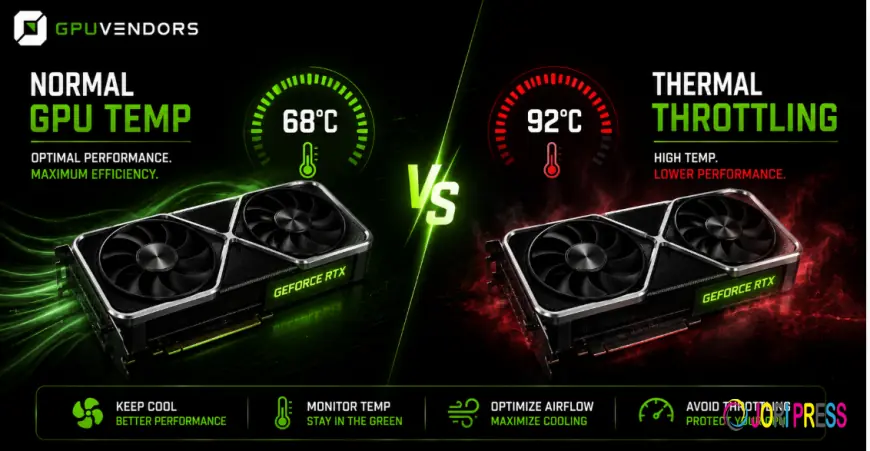
When you push your system to its absolute limits with high fidelity gaming or heavy rendering tasks, your hardware generates a massive amount of heat. Understanding how your graphics card manages this thermal output is essential for maintaining longevity and stable performance. Finding the right hardware starts by choosing a
Understanding Normal GPU Temperatures
Every graphics card is designed to operate within a specific thermal envelope. When your system sits idle or handles basic web browsing, your card should typically idle between 30 and 40 degrees Celsius. Under moderate loads, such as watching high definition video or playing light esports titles, seeing temperatures rise into the 50 to 60 degree range is completely normal.
When you launch a demanding modern game or start a heavy compute workload, the silicon core goes to work and temperatures will naturally climb further. For most modern graphics processing units, normal operating temperatures under full load range anywhere from 65 to 85 degrees Celsius. While seeing numbers in the 80s can feel alarming, manufacturers design these chips to handle these loads safely. However, as you approach the upper limits of this spectrum, your card begins looking for ways to protect itself from heat damage.
What is Thermal Throttling?
Thermal throttling is a built in safety mechanism designed to protect your graphics card from permanent thermal damage. When the internal silicon sensor detects that the temperature has crossed a critical threshold, usually around 83 to 90 degrees Celsius depending on the specific model and manufacturer, the card takes immediate action.
To cool itself down, the hardware automatically reduces its core clock speed and lowers voltage. While this successfully lowers the temperature and prevents catastrophic failure, it comes at a major cost to your user experience. When throttling occurs during a heavy gaming session, you will immediately notice stuttering, frame rate drops, and sluggish response times. If you frequently experience sudden performance drops during long rendering sessions or extended gaming marathons, thermal throttling is the most likely culprit.
Key Factors That Cause Overheating
Several variables influence how hot your graphics card runs during daily use. Identifying these issues can help you resolve temperature spikes before they turn into performance throttling.
Inadequate Case Airflow
Even the most advanced cooling shroud on a graphics card cannot function properly if the case it lives inside is starved for fresh air. If your chassis lacks sufficient intake and exhaust fans, hot air gets trapped around the components, forcing the card to recirculate warm air instead of expelling it.
Dust and Debris Buildup
Over time, dust, pet hair, and microscopic debris accumulate inside your heatsink fins and fan blades. This layer acts as an insulating blanket, trapping heat against the printed circuit board and blocking airflow. Regular maintenance and cleaning are vital to keeping your hardware running cool.
Aggressive Overclocking
Pushing your core and memory clocks beyond factory specifications requires more electrical power. Higher voltage directly correlates to increased heat output. If your cooling solution cannot keep pace with an aggressive overclock, your card will quickly hit thermal limits.
Degrading Thermal Paste
The thermal paste sandwiched between the graphics chip and the heatsink dries out and loses its thermal conductivity over several years. When this happens, heat transfer becomes inefficient, leading to higher temperatures even under normal loads.
Practical Steps to Lower Your GPU Temperatures
Keeping your graphics card cool does not always require purchasing entirely new hardware. Several straightforward adjustments can dramatically improve your thermal performance.
Optimize Fan Curves
Most graphics cards come with factory fan profiles tuned for quiet operation rather than maximum cooling. Using software utilities, you can customize your fan curve to ramp up fan speeds earlier and more aggressively as temperatures rise. While this might increase noise levels slightly during heavy gaming, it keeps your silicon significantly cooler and prevents thermal throttling.
Improve Chassis Ventilation
Ensure your pc case has a balanced airflow configuration. Adding intake fans at the front and exhaust fans at the top and rear helps create a smooth pathway for cool air to flow across your components. Cable management also plays a major role by preventing tangled wires from blocking vital airflow channels.
Maintain a Clean Environment
Make it a habit to clean your system every few months using compressed air. Clearing dust out of your radiator fins, dust filters, and fan blades ensures optimal heat dissipation and keeps your system running at peak efficiency.
Consider Undervolting
Undervolting is a technique where you reduce the electrical voltage supplied to the graphics chip while maintaining stock performance. Because voltage is the primary driver of heat generation, a proper undervolt can drop your load temperatures by several degrees without sacrificing a single frame of performance.
Upgrading Your Cooling and Hardware
Sometimes, an aging graphics card simply lacks the cooling capacity required for modern workloads. If your card suffers from poor design or failing fans, minor adjustments may not be enough. When you are ready to transition to a more efficient system with robust cooling capabilities, you can
What's Your Reaction?
 Like
0
Like
0
 Dislike
0
Dislike
0
 Love
0
Love
0
 Funny
0
Funny
0
 Angry
0
Angry
0
 Sad
0
Sad
0
 Wow
0
Wow
0