
































Lorex Doorbell Camera Not Working? Easy Troubleshooting Tips
Learn how to set up, connect, and troubleshoot your Lorex Doorbell Camera. Find easy solutions for WiFi connection issues, offline errors, motion detection problems, and improve your home security experience.
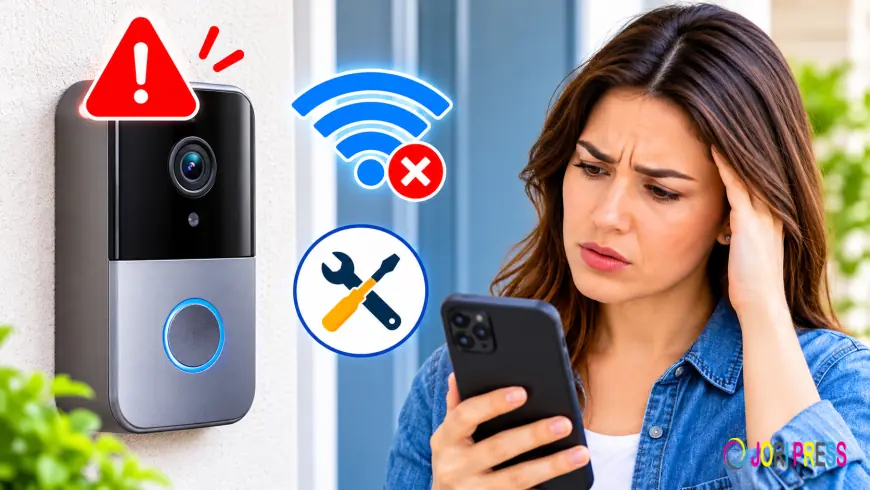
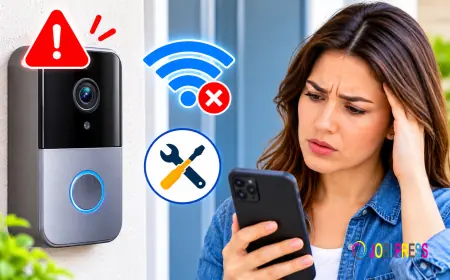
A Lorex doorbell camera helps you monitor your front door, communicate with visitors, and receive motion detection alerts. However, sometimes the device may stop working correctly. You might experience problems such as the doorbell going offline, failing to connect to WiFi, not detecting motion, or displaying a black screen.
If your Lorex Doorbell Camera is not working, there may be several reasons behind the problem. Common causes include insufficient power, weak WiFi signals, incorrect settings, outdated firmware, or application-related issues.
Fortunately, many of these problems can be resolved with a few troubleshooting steps. This guide explains how to identify common Lorex doorbell problems and restore normal operation. It also covers important steps related to Lorex WiFi Camera Setup.
Common Reasons Why Your Lorex Doorbell Camera Is Not Working
Before trying different troubleshooting methods, understand what might be causing the issue.
Some common reasons include:
-
Weak or unstable WiFi connection.
-
Insufficient power supply.
-
Incorrect installation or configuration.
-
Outdated camera firmware.
-
Incorrect motion detection settings.
-
Problems with the Lorex mobile application.
-
Incorrect WiFi password.
-
Temporary software or network interruptions.
Identifying the actual cause can help you select the right solution without changing unnecessary settings.
1. Check the Power Supply
A power supply problem is one of the common reasons a Lorex doorbell camera stops working. If the device does not receive sufficient power, it may fail to turn on, disconnect frequently, or stop responding.
If you have a wired Lorex doorbell, check the following:
-
Make sure the doorbell wiring is securely connected.
-
Check whether the power transformer meets the requirements of your model.
-
Inspect the wires for visible damage.
-
Check the circuit breaker if the doorbell has lost power.
-
Confirm that the doorbell receives the required voltage.
For battery-powered models, check the battery level and recharge or replace the battery according to the manufacturer's instructions.
If the camera remains unresponsive, consult the installation guide before making further wiring changes.
2. Check Your WiFi Connection
A weak WiFi signal can prevent your Lorex Doorbell Camera from communicating with the mobile application.
If your doorbell is installed far away from the router, it may experience frequent disconnections or delayed notifications.
Follow these steps to check your WiFi connection:
-
Check whether your home internet connection is working.
-
Restart your router if other devices are also experiencing network problems.
-
Move your router closer to the doorbell if possible.
-
Check the WiFi signal strength near your front door.
-
Confirm that you are using the correct network password.
-
Verify that your router supports the WiFi frequency required by your doorbell.
Some Lorex doorbell models support only 2.4 GHz WiFi, while compatibility may vary across models.
If the signal is weak, consider improving your router placement or using a compatible WiFi extender.
3. Restart Your Lorex Doorbell Camera
Sometimes, a temporary software problem can cause your doorbell camera to stop responding.
Restarting the device may help restore its normal operation without removing saved settings.
Steps to restart your doorbell:
-
Check your model's instructions for the recommended restart method.
-
If the device has a removable battery, follow the manufacturer's instructions for safely removing and reinserting it.
-
For wired models, use the recommended power isolation procedure.
-
Restore power if necessary.
-
Wait for the device to complete its startup process.
-
Open the Lorex application and check the camera status.
After restarting, check whether the live video and other features are working correctly.
Avoid performing a factory reset when a simple restart may solve the problem.
4. Complete the Lorex WiFi Camera Setup Again
If you recently changed your router, WiFi password, or internet service provider, your doorbell may lose its previous network connection.
In this situation, you may need to complete the Lorex WiFi Camera Setup process again.
Follow these steps:
-
Make sure your Lorex doorbell is powered on.
-
Connect your smartphone to your home WiFi network.
-
Open the compatible Lorex mobile application.
-
Sign in to your account.
-
Select your doorbell device.
-
Open the network or device settings.
-
Follow the instructions to reconnect the camera to WiFi.
-
Enter the correct network password.
-
Wait for the connection process to finish.
If the device cannot reconnect, check whether it needs to enter pairing mode.
The setup procedure may differ depending on your Lorex doorbell model. Always follow the instructions provided for your specific device.
5. Fix Lorex Doorbell Camera Offline Problems
A Lorex doorbell may appear offline even when it has power. This usually indicates a communication problem between the device, router, and mobile application.
Try the following solutions:
-
Check whether your internet connection is active.
-
Verify that the doorbell receives sufficient power.
-
Restart your router and doorbell when appropriate.
-
Check the WiFi signal near the installation location.
-
Open the Lorex application and refresh the device status.
-
Confirm that the doorbell is connected to the correct network.
If other devices connected to the same router are also offline, the problem may be related to your internet connection.
However, if only the doorbell is offline, inspect its individual power and network settings.
6. Troubleshoot Motion Detection Problems
Motion detection allows your Lorex doorbell to identify activity near your entrance and send alerts to your smartphone.
If you are not receiving motion notifications, incorrect settings may be responsible.
How to fix motion detection:
-
Open the Lorex mobile application.
-
Select your doorbell camera.
-
Navigate to the motion detection settings.
-
Make sure motion detection is enabled.
-
Review the motion sensitivity level.
-
Check the detection zones, if supported.
-
Review notification permissions on your smartphone.
Make sure the camera has a clear view of the area you want to monitor.
Objects such as walls, plants, and decorative items may block the camera's field of view.
Also, check whether your phone has enabled notifications for the Lorex application.
7. Fix Lorex Doorbell Camera Live View Problems
Sometimes, the doorbell camera may appear online, but the live video does not load properly.
This issue may occur because of a weak internet connection, application problems, or temporary communication errors.
Try these troubleshooting steps:
-
Close and reopen the Lorex application.
-
Check your smartphone's internet connection.
-
Refresh the live-view screen.
-
Restart the doorbell if necessary.
-
Update the Lorex application.
-
Check whether other devices connected to the same network are working.
If the live view works on another supported device, the issue may be related to your smartphone or application settings.
If the screen remains black, check the camera lens for dirt, obstructions, or visible damage.
8. Update Your Lorex Doorbell Firmware
Firmware updates help maintain device performance and may resolve certain software or compatibility problems.
If your Lorex Doorbell Camera is not working properly, check whether a firmware update is available.
Steps to check for updates:
-
Open the compatible Lorex application.
-
Select your doorbell camera.
-
Navigate to the device settings.
-
Look for the firmware or update option.
-
Check whether an update is available.
-
Follow the manufacturer's instructions to install it.
Keep the device connected to a stable power supply during the update.
Do not disconnect the camera while the firmware installation is in progress. Update availability and installation methods vary by model.
9. Reset Your Lorex Doorbell Camera
If none of the previous solutions works, a factory reset may help resolve persistent configuration or connection problems.
However, resetting the device may erase saved WiFi information, pairing details, and customized settings.
Steps to reset your doorbell:
-
Identify your exact Lorex doorbell model.
-
Locate the reset button if your model includes one.
-
Check the user manual for the correct reset procedure.
-
Follow the recommended instructions.
-
Wait for the device to restart.
-
Add the doorbell to the compatible Lorex application again.
-
Complete the WiFi configuration process.
Do not use a universal reset duration because different Lorex models may have different reset procedures.
10. Contact Lorex Support
If your doorbell still does not work after troubleshooting, the problem may involve hardware damage, wiring issues, or a more complicated configuration error.
Before contacting support, prepare the following information:
-
Lorex doorbell model number.
-
Type of power connection.
-
WiFi network details, without sharing your password.
-
Error messages displayed in the application.
-
Description of the problem.
-
Troubleshooting steps you have already attempted.
This information can help identify the issue more efficiently.
Frequently Asked Questions
Why is my Lorex Doorbell Camera not working?
Your Lorex Doorbell Camera may not work because of insufficient power, weak WiFi signals, incorrect settings, outdated firmware, or application problems. Check the power and network connections first.
Why does my Lorex doorbell keep going offline?
An unstable WiFi connection, router problems, or power interruptions can cause frequent disconnections. Check the network signal near the doorbell and verify its power supply.
How do I reconnect my Lorex doorbell to WiFi?
Open the compatible Lorex application, select your doorbell, and follow the network configuration instructions. Enter your correct WiFi password and complete the pairing process.
Why is my Lorex doorbell not detecting motion?
Motion detection may be disabled, sensitivity may be too low, or detection zones may be incorrectly configured. Review the motion settings and smartphone notification permissions.
Can I reset my Lorex Doorbell Camera?
Yes, supported models can be reset using their designated reset procedure. Check your model's manual before performing a factory reset because the process may erase saved settings.
Conclusion
A Lorex Doorbell Camera may stop working because of power supply problems, WiFi interruptions, incorrect configuration, motion detection settings, or outdated firmware. Fortunately, many common problems can be resolved by checking the power connection, restarting the device, and verifying the network settings.
If the camera continues to experience connectivity problems, repeat the Lorex WiFi Camera Setup process according to your model's instructions. You can also check for firmware updates or perform a factory reset when necessary.
Regularly checking your doorbell's power supply, network connection, and application settings can help maintain reliable performance and improve your home security experience.
What's Your Reaction?
 Like
0
 Dislike
0
 Love
0
 Funny
0
 Angry
0
 Sad
0
 Wow
0